Setting up a home network is essential for connecting devices for work and entertainment. This guide will help you create a reliable and secure home network by explaining the necessary components, providing step-by-step instructions for configuring your router, and offering tips to protect your network from unauthorized access.
What do I need to set up my home network? [prerequisites]
To create a reliable home network, you’ll need the following components:
- A modem to connect to your Internet Service Provider (ISP).
- A wireless router to distribute the internet connection to your devices.
- Ethernet cables for direct connections between devices and the router (if desired).
- A computer or smartphone for configuration.
- Power sources for your modem and router.
How do I set up my router step by step? [steps]
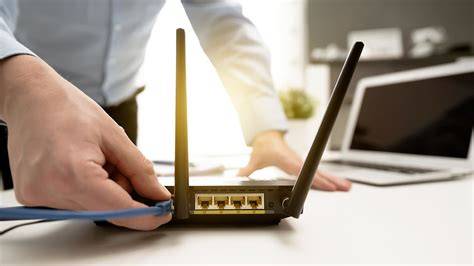
- Connect your modem to the router. Use an Ethernet cable to connect the modem’s LAN port to the router’s WAN or Internet port.
- Power on your modem and router. Plug them into a power source and turn them on. Wait a few minutes for them to boot up.
- Connect your computer or smartphone to the router. You can do this via Wi-Fi (look for the default network name on the router) or using an Ethernet cable.
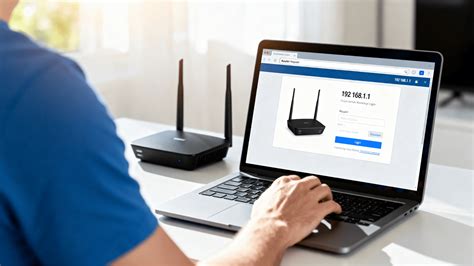
- Access the router’s configuration page. Open a web browser and type the router’s IP address (often
192.168.1.1or192.168.0.1) in the address bar. - Log in using the default credentials. Check the router's manual or the label on the device for the username and password (commonly both are "admin").
- Set up your wireless network. Change the SSID (network name) and set a strong password in the wireless settings section.
- Configure additional settings. Adjust settings like DHCP, firewall, and parental controls according to your needs, then save your changes.
- Restart the router. This helps apply all the changes you've made.
How can I secure my network from intruders? [cautions]
To enhance your home network security, consider these steps:
- Change the default admin credentials. Use a unique username and a strong password for your router’s admin interface.
- Use WPA3 encryption. If your router supports it, this is the most secure option for wireless encryption.
- Regularly update your router’s firmware. Check the manufacturer’s website for updates and apply them to protect against vulnerabilities.
- Disable remote management. This prevents unauthorized access to your router’s settings from outside your home network.
- Enable a guest network. This keeps visitors on a separate network, protecting your personal devices.
- Monitor connected devices. Regularly check which devices are connected to your network to spot any unfamiliar ones.
What should I do if my network isn’t working properly? [completion]
If you experience connectivity issues, follow these troubleshooting steps:
- Check all physical connections. Ensure that cables are firmly connected and not damaged.
- Restart your modem and router. Unplug them for about 30 seconds, then plug them back in. Wait for them to fully reboot.
- Run a speed test. Use an online service to check if you’re getting the expected internet speed.
- Check for outages. Contact your ISP to see if there are any service disruptions in your area.
- Reset your router to factory settings. If problems persist, use the reset button (usually a small hole) on the router. Be aware this erases all settings.
What are some common mistakes to avoid? [faq]
When setting up your home network, avoid these common pitfalls:
- Using the default network name and password. Always change these to something unique to enhance security.
- Neglecting firmware updates. Outdated firmware can expose your network to security risks.
- Overlooking physical placement of the router. Position your router in a central location for better coverage and avoid placing it near obstructions.
Conclusion
After setting up your home network, ensure it operates smoothly by monitoring performance and making adjustments as needed. Regularly update your security settings and keep your devices connected. If you encounter issues, refer back to the troubleshooting steps or consider reaching out for help.