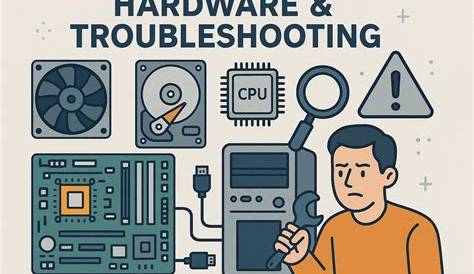
If you're facing hardware problems, you might experience symptoms like unusual noises, system crashes, and error messages. Fortunately, many issues can be diagnosed and resolved with some straightforward troubleshooting. This guide provides step-by-step instructions to help you identify problems, apply effective fixes, and know when it's time to consult a professional.
What symptoms indicate a hardware issue?
Several signs can indicate hardware failures. You might notice:
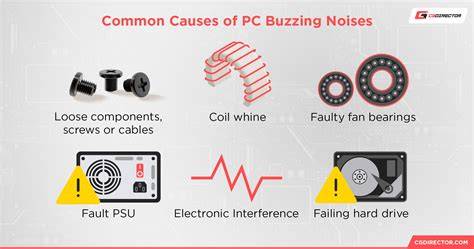
- Unusual noises: Clicking or grinding sounds from your computer can indicate a failing hard drive or malfunctioning fan.
- Error messages: Messages such as 'No Boot Device Found' or 'Blue Screen of Death' can signal hardware issues.
No Boot Device Found- System crashes: Frequent crashes or freezes, especially during specific tasks, often suggest hardware malfunctions.
- Performance drops: If your computer becomes significantly slower, it could indicate failing components like RAM or the hard drive.
- Inaccessibility of devices: If peripherals like printers or external drives are suddenly not recognized, it may point to connectivity issues or hardware failure.
How to accurately diagnose hardware problems?
Before you start diagnosing hardware issues, consider the following:
- This guide applies to desktop and laptop computers.
- Ensure you have Administrator privileges.
- Back up important data if possible, as some fixes may risk data loss.
The diagnostic steps include:
- Check physical connections: Ensure all cables and components are securely connected.
- Run built-in diagnostics: Many computers come with built-in tools. Access these via the BIOS or boot menu during startup.
- Use Device Manager: Open Device Manager to see if any devices show errors (look for yellow exclamation marks).
- Test RAM and hard drive: Use tools like Windows Memory Diagnostic for RAM and CHKDSK for hard drives. ``
cmd title="Command Prompt" chkdsk /f /r`` - Monitor temperatures: High temperatures can indicate cooling issues. Use software tools to check your system’s temperature.
What are the most effective fixes for common hardware issues?
Depending on the diagnosed hardware issue, here are some effective fixes:
Failing Hard Drive
- Backup important data immediately.
- Replace the hard drive if it shows signs of failure.
Faulty RAM
- Reseat the RAM modules: Power off your computer, remove the RAM sticks, then reinsert them firmly.
Overheating Components
- Clean dust from fans and vents: Use compressed air to remove dust buildup.
- Replace thermal paste: If your CPU is overheating, replace the thermal paste between the CPU and cooler.
- Ensure proper airflow: Check that fans are operational and that there’s adequate space around the computer for airflow.
Peripheral Issues
- Update drivers: Use Device Manager to check for and install any available updates for your devices.
How to verify that the issue is resolved?
After applying fixes, it's crucial to ensure the hardware is functioning correctly:
- Run the same diagnostic tests you performed initially to check if the symptoms persist.
- Monitor system performance: Use your computer as you normally would and observe for any recurring issues.
- Check for error messages: Keep an eye on error messages or unusual noises that might indicate unresolved problems.
- Run a stress test: For components like the CPU and GPU, use stress testing tools to ensure stability under load.
When should you consult a professional?
Consider seeking professional help in these scenarios:
- You've tried multiple fixes without success.
- The issue involves complex hardware like motherboards or power supplies.
- You are uncomfortable with opening the computer or handling sensitive components.
- There are signs of physical damage, such as burnt components or liquid spills.
Conclusion
If troubleshooting resolves the issue, that’s great! If problems persist, don’t hesitate to reach out to a professional. They have the expertise needed to tackle more complex hardware issues effectively.