If you frequently experience application freezes on Windows 10, there are straightforward fixes to help you tackle the issue. Recognizing the signs of a freeze is the first step, followed by basic troubleshooting and advanced solutions for persistent problems. This guide will walk you through each of these steps to get your applications running smoothly again.
What are the signs of an application freeze?
Recognizing when an application is truly frozen versus just slow can save you time and frustration. If an application stops responding for more than a few moments, displays a spinning wheel, or shows an error message indicating it’s not responding, it’s likely frozen. Sometimes, applications may appear busy while processing actions in the background, so give it a minute before concluding it’s frozen. If you can’t interact with the application and the interface doesn’t update, this is a strong sign of a freeze.
What basic troubleshooting steps can I try first?
Start with some simple steps that often resolve freezes quickly:
- Restart the application. Close it completely and reopen it.
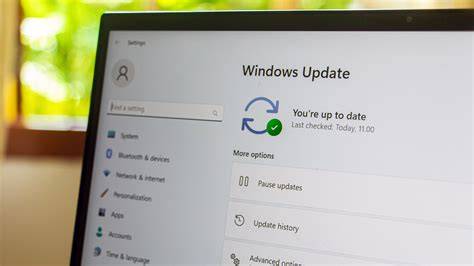
- Check for updates. Make sure both your application and Windows are up to date. ``
cmd title="Check for Windows updates" Start -> Settings -> Update & Security -> Windows Update -> Check for updates`` - Restart your computer. This can clear temporary issues that may be causing the freeze.
How do I check system resources and close background processes?
Sometimes, other applications running in the background can cause freezes by consuming too many system resources. To check this:
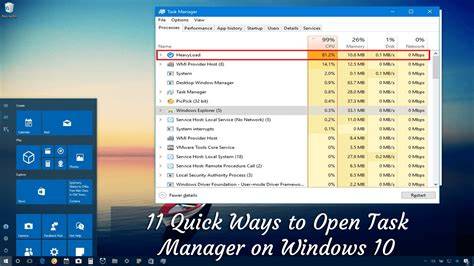
- Open Task Manager by pressing
Ctrl + Shift + Esc. - Look at the Processes tab to see which applications are using significant CPU or memory.
- If you find unnecessary applications running, select them and click on "End Task" to close them. ``
text Right-click on the application name -> End Task`` - After closing unwanted applications, check if the problem persists.
What if the problem persists after basic fixes?
If restarting the application and your computer doesn’t help, you can try more advanced solutions:
- Reinstall the application. Uninstall it first through the Control Panel, then download and install the latest version from the official website. ``
cmd title="Uninstall application" Control Panel -> Programs -> Uninstall a program -> Select application -> Uninstall`` - Check for system file corruption. Run the System File Checker tool: ``
cmd title="Run System File Checker" sfc /scannow`` - Perform a clean boot. This starts Windows with a minimal set of drivers and startup programs, which can help identify if background programs are causing issues.
When should I seek professional help?
If you’ve tried all these steps and your applications still freeze frequently, it might be time to consult a professional. Signs that indicate you should seek help include:
- Persistent freezes across multiple applications.
- Frequent crashes or blue screens.
- Hardware issues such as strange noises from your computer.
A professional can help determine if there are underlying hardware problems or if more advanced software fixes are needed.
Conclusion
After trying these steps, you should see fewer application freezes. If issues continue, consider reaching out for professional assistance to ensure your system runs smoothly. Keeping your software and operating system updated is also a good practice to prevent future freezes.