If you're facing printer errors on Windows 11 while trying to print an important document, you're not alone. Common issues include messages like 'Printer Offline' or 'Print Job Stuck'. Fortunately, with a few straightforward steps, you can usually resolve these problems and get back to work.
What are the most common printer errors in Windows 11?
Some common printer error messages you might encounter include:
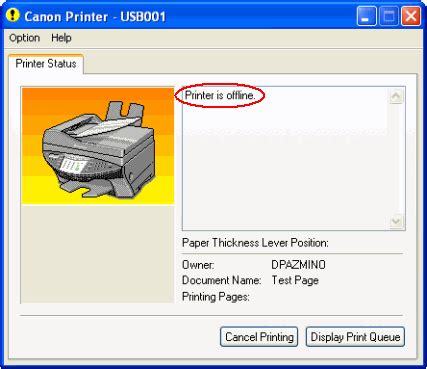
Printer Offline
Print Job Stuck
Unable to Connect to Printer
Out of Paper
Printer Not Responding- Printer Offline: This indicates that your computer cannot communicate with the printer, often due to connectivity issues.
- Print Job Stuck: This means that a specific print job is preventing others from printing, typically requiring you to clear the queue.
- Unable to Connect to Printer: This error can occur when the printer is not properly set up on your network.
- Out of Paper: This message signifies that the printer cannot print due to a lack of paper.
- Printer Not Responding: This suggests that the printer is either turned off or not connected correctly.
When to troubleshoot printer issues?
Consider troubleshooting your printer in these situations:
- After a Windows update, which may alter your printer settings or drivers.
- When switching networks, especially if you're using a wireless printer.
- If your printer suddenly stops working after functioning without issues.
Before troubleshooting, ensure your printer is powered on and connected to the same network as your computer.
How to troubleshoot connectivity issues with your printer?
To resolve connectivity problems:
- Check the printer’s power and connection.
- Restart your printer and computer.
- Check your network settings: - Open Settings > Devices > Printers & scanners. - Ensure your printer appears in the list.
- Run the Printer Troubleshooter: - Open Settings > Update & Security > Troubleshoot > Additional troubleshooters > Printer.
- Confirm your printer is set as the default printer: - Go to Settings > Devices > Printers & scanners and select your printer. - Click on "Manage" and then "Set as default".
If these steps do not resolve the issue, check the printer's manual or the manufacturer's website for additional troubleshooting tips.
How to verify if your printer is working correctly?
After troubleshooting, verify if your printer is functioning properly:
- Print a test page: - Go to Settings > Devices > Printers & scanners. - Select your printer and click "Manage". - Click "Print a test page".
- Check the printer status: - In the same menu, ensure it shows as "Ready". If it indicates "Offline" or any error, further troubleshooting may be necessary.
If you successfully print a test page, your printer is likely functioning correctly.
Tips to prevent future printer problems in Windows 11
To maintain your printer's health and prevent future issues:
- Regularly update your printer drivers by checking the manufacturer's website periodically.
- Keep the printer clean and well-maintained, as dust and debris can cause mechanical issues.
- Monitor your printer's ink or toner levels and paper supply.
- Occasionally restart your printer and computer to clear any temporary glitches.
Following these practices can help reduce the occurrence of printer problems.
Conclusion
If you continue to experience issues after trying these steps, consider contacting your printer's support team for specialized assistance. Regular maintenance and awareness of your printer's status can help you avoid similar problems in the future.
Frequently Asked Questions
What should I do if my printer is still offline after troubleshooting?
If your printer remains offline, ensure it's properly connected to your network and that the cable is securely plugged in. You can also try reinstalling the printer drivers.
How do I clear a stuck print job?
To clear a stuck print job, go to Settings > Devices > Printers & scanners, select your printer, click on "Open queue", right-click the stuck print job, and select "Cancel".
Can I use my printer if it's out of ink?
No, your printer will not be able to print if it's out of ink. You will need to replace the ink or toner cartridges before printing.
Is there a way to reset my printer settings?
Yes, you can reset your printer settings by going to Settings > Devices > Printers & scanners, selecting your printer, clicking on "Manage", and then choosing "Printer properties" to access various settings.