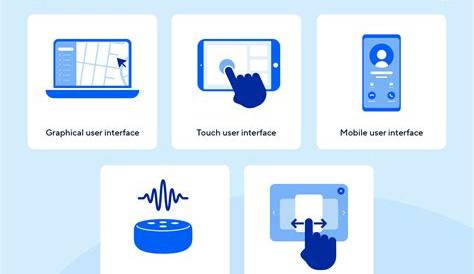
If you've recently updated your software and are struggling with the new interface, you're not alone. Many professionals face similar challenges when adjusting to changes in layout and functionality. This guide covers key features, navigation tips, and common pitfalls to help you adapt more effectively.
What are the main changes in the new interface?
The new interface introduces several significant changes compared to the previous version. The layout is now more streamlined, prioritizing usability. Menus have been reorganized, making frequently used features easier to access. The toolbar is simplified, condensing several functions into drop-down menus. New icons enhance visual clarity, though they may require some adjustment. Enhanced search functionalities allow you to find features and settings more quickly than before. Additionally, the new interface includes customizable toolbars and display settings to tailor your experience.
How to find your way around the new layout?
To navigate the new layout effectively, follow these steps:
- Familiarize yourself with the main menu.
- Locate the toolbar, which now houses essential functions.
- Use the search bar at the top of the interface to quickly find tools or settings.
- Explore the drop-down menus for additional options that may have been hidden in the old layout.
- Check out the help or tutorial section for guided tours of new features.
By taking these steps, you’ll start to feel more at ease with the changes and can quickly access what you need.

What common mistakes should you avoid?
Adapting to a new interface can lead to common pitfalls. Here are a few mistakes to watch out for:
- Ignoring the help resources. Many users skip tutorials, assuming they can figure it out on their own, which can lead to frustration.
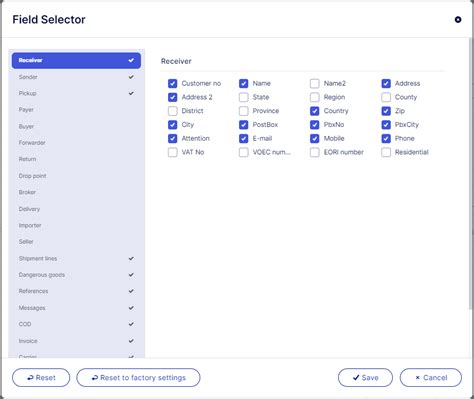
- Not customizing the layout. Some features allow you to rearrange toolbars or menus, which can significantly enhance your efficiency.
- Overlooking new features. Updates often come with enhancements that can streamline your workflow. Make sure to explore these options before defaulting to old habits.
By being aware of these mistakes, you can navigate the new interface more effectively.
How can you customize your experience?
Customizing your experience in the new interface can make your workflow smoother. Here’s how:
- Access the settings menu, usually found under your profile icon or the main menu.
- Look for options to rearrange toolbars or pin frequently used features to the top.
- Adjust the display settings to fit your preferences, such as theme and layout.
- Set up keyboard shortcuts for actions you perform often.
These customizations can save you time and help you work more effectively.
Where can you find additional resources or support?
If you need further assistance, several resources are available:
- The official documentation typically contains comprehensive guides and FAQs.
- User forums can be a valuable place to ask questions and share tips with other users.
- Customer support channels are often reachable through the software's help menu, providing direct assistance.
These resources can offer additional insights as you adjust to the new interface.
Conclusion
As you become familiar with the new interface, take it step by step. Experiment with the layout and customization options to find what works best for you. Don't hesitate to utilize the available resources to make your transition smoother.
Frequently Asked Questions
What should I do if I can't find a feature in the new interface?
Try using the search bar to locate it, or check the help section for guidance.
Can I revert to the old interface?
Some software allows you to switch back, while others do not. Check the settings or documentation for details.
Are there keyboard shortcuts for the new interface?
Yes, look in the settings or help documentation for a list of available shortcuts.
How can I provide feedback about the new interface?
Most software has a feedback option in the help menu where you can share your thoughts.