If your PC is running slowly or facing persistent software issues, resetting it to factory settings can resolve these problems and restore your computer to its original state. This process can significantly enhance performance and eliminate unwanted programs. Here’s a clear guide to help you reset your PC safely and effectively.
Why Would You Want to Reset Your PC?
You might consider resetting your PC for various reasons. A common reason is to improve performance, as software clutter can accumulate and slow down your system. You may also want to resolve intractable software issues or remove malware. If you plan to sell or give away your computer, resetting it can wipe your personal data clean. Lastly, resetting your PC provides a fresh start, allowing you to eliminate unnecessary programs and files.
How to Back Up Your Important Data
Before resetting your PC, it's essential to back up important data to prevent loss. Here's how to do it:
- Identify the files you want to keep, such as documents, photos, and vital application data.
- Use an external hard drive or a cloud storage service for your backups.
- On Windows, utilize the built-in File History feature or drag and drop files to your external device.
To back up using File History:
- Connect your external drive.
- Go to
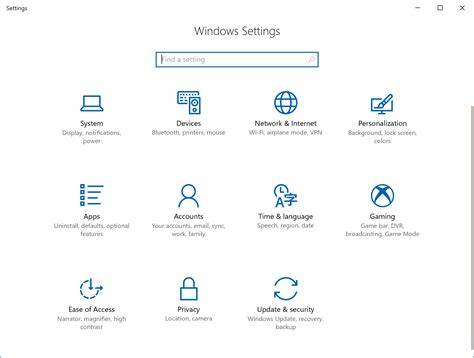
Settings>Update & Security>Backup. - Click on
Add a driveand select your external drive. - Turn on
Automatically back up my files.
Step-by-Step Guide to Resetting Your PC
Resetting your PC is a straightforward process. Follow these steps to initiate it:
- Open the
Settingsapp by clicking the Start menu and selecting the gear icon. - Choose
Update & Securityfrom the Settings menu. - Click on
Recoveryin the left sidebar. - Under
Reset this PC, click on theGet startedbutton. - Decide whether to keep your files or remove everything: - If you want to keep your personal files, select
Keep my files. - If you're ready for a complete reset, chooseRemove everything. - Follow the on-screen instructions, confirming your choices and selecting whether to clean the drives or just remove your files.
- Click on
Resetto begin the process.
Choosing Remove everything will delete all personal files, apps, and settings.
What to Expect After the Reset
After the reset process completes, your PC will restart and present you with the Windows setup screen, similar to when you first bought it. You will need to go through the initial setup, which includes selecting your region and language, signing in with a Microsoft account (or creating one), and configuring privacy settings. After setup, check for updates in Settings > Update & Security to ensure your system has the latest features and security patches.
Frequently Asked Questions About Resetting Your PC
Many users have questions about resetting their PCs. Here are some common ones:
- Can I recover lost data after a reset? If you chose
Remove everything, recovering data can be difficult. It's crucial to back up everything important before resetting. - What if my PC fails to reset? If you experience issues during the reset process, you may need to use installation media to perform a clean install of Windows.
Conclusion
After resetting your PC, take time to reinstall necessary applications and restore any backed-up files. Regular maintenance can help prevent the need for future resets and keep your computer running smoothly. Don't forget to check for updates and set up any security software to protect your device moving forward.