Setting up a home network is essential for connecting multiple devices to the Internet, and it doesn't have to be overwhelming. With the right equipment and a clear process, you can establish a reliable network in your home. This guide will help you select the appropriate hardware and provide step-by-step instructions for setting up and optimizing your network.
What equipment do I need to set up my home network? [prerequisites]
To set up a home network, you’ll need a few essential pieces of hardware:
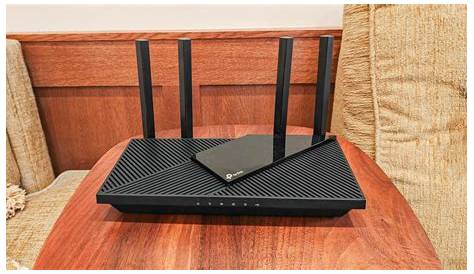
- Router: This device connects your home network to the Internet. Popular models include the TP-Link Archer A7 and Netgear Nighthawk RAX40.
- Modem: This connects to your Internet service provider. If you have cable Internet, a common choice is the Motorola MB7621.
- Ethernet cables: These connect your modem to the router and can also connect devices directly for a wired connection.
- Switch (optional): If you have many wired devices, a switch can expand the number of Ethernet ports available.
Make sure your modem is compatible with your Internet service provider.
How do I connect my router and modem? [steps]
- Place your modem in a central location and plug it into a power outlet.
- Connect one end of an Ethernet cable to the modem.
- Take the other end of the Ethernet cable and connect it to your router’s WAN or Internet port.
- Power on your router by plugging it into a power outlet.
- Wait for the router to fully boot up; this usually takes a couple of minutes.
Once the router is powered on, it should start connecting to the modem automatically.
How do I connect my devices to the network? [steps]
- On your computer, smartphone, or smart TV, open the Wi-Fi settings.
- Look for your network name (SSID), which is usually printed on the router.
- Select your network name from the list of available networks.
- Enter the Wi-Fi password, which is also usually found on the router.
- Once connected, you should see a confirmation that you are online.
For wired devices, connect an Ethernet cable from the device to one of the LAN ports on the router. This should establish an immediate connection.
What are some tips for improving my network security? [cautions]
To keep your home network secure, follow these best practices:
- Change the default username and password of your router to something unique.
- Enable WPA3 encryption for your Wi-Fi network, if available.
- Regularly update your router’s firmware to protect against vulnerabilities.
- Disable remote management features unless necessary, as they can expose your network to threats.
- Set up a guest network for visitors to keep your main network more secure.
How can I troubleshoot common connectivity issues? [completion]
If you encounter problems while setting up or using your network, consider these common issues:
- Device won’t connect to Wi-Fi: Check if Wi-Fi is enabled on the device and confirm you’re entering the correct password.
- Slow Internet speed: Run a speed test. If it's slower than expected, try rebooting the router and modem by unplugging them for 10 seconds, then plugging them back in.
- No Internet access: Ensure all cables are securely connected and that your modem shows a stable connection to your ISP.
- Limited connectivity: This may occur if your device is too far from the router. Try moving closer or use a Wi-Fi extender.
Conclusion
Now that you’ve set up your home network, you can enjoy connecting your devices with ease. If you run into issues, refer back to the troubleshooting tips. Keep your network secure and consider exploring additional features of your router for better performance.
Frequently Asked Questions
What should I do if my Wi-Fi signal is weak in certain areas of my home?
You can try repositioning your router to a more central location, using a Wi-Fi extender, or switching to a mesh network system for better coverage.
How often should I change my Wi-Fi password?
It's a good idea to change your Wi-Fi password every few months or immediately if you suspect unauthorized access.
Can I use my own router instead of the one provided by my ISP?
Yes, you can often use your own router, but ensure it's compatible with your ISP's service.
What is the difference between a modem and a router?
A modem connects your home to the Internet, while a router distributes that Internet connection to multiple devices within your home.