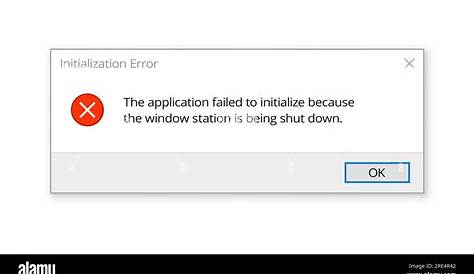
If your accounting software won't open, it’s likely due to a software error, compatibility issue, or resource limitations. To resolve this, you can identify any error messages, understand the potential causes, and follow specific troubleshooting steps. Acting quickly can help you avoid missing critical financial deadlines.
What error messages are you seeing?
Error messages provide crucial information for diagnosing software issues. Here are some common messages you might encounter:
Error: Application cannot be started. Contact the application vendor.
Error: The software has encountered a problem and needs to close.
Error: Unable to connect to the database.
These messages indicate various underlying problems, such as installation issues, database connection problems, or software conflicts. Noting the exact text of the error can be essential for effective troubleshooting.
What could be causing the problem?
Software malfunctions can arise from various factors. Here are a few common causes:
- Compatibility Issues: The software version might not be compatible with your operating system.
- Recent Updates: A recent update to the software or operating system may have introduced bugs or conflicts.
- Corrupted Files: Installation files or user data may have become corrupted.
- Insufficient System Resources: Your computer may not have enough memory or processing power to run the software effectively.
Identifying the cause can help you apply the right solution. If you are unsure, consider checking for any recent changes to your system or software.
How can you fix the software issue?
Here are some steps to troubleshoot your software issue:
- Restart Your Computer: This can resolve many temporary glitches.
- Check for Updates: Ensure your software and operating system are up to date.
- For Windows, go to:
Settings > Update & Security > Windows Update- Run the Software as Administrator: Right-click the software icon and choose 'Run as administrator'. This can resolve permission issues.
- Reinstall the Software: If the above steps do not work, uninstall and then reinstall the software. Make sure to back up any important data first. > Warning: Uninstalling the software may result in data loss unless backed up.
- Check Firewall Settings: Ensure that your firewall isn’t blocking the software. You can do this in: ``
text Control Panel > System and Security > Windows Defender Firewall > Allow an app or feature through Windows Defender Firewall``
If the software still doesn’t open after these steps, you may need to look deeper into the problem.
How to verify if the fix worked?
After trying the fixes, you should verify if the software is functioning properly. Here's how:
- Open the Software: Launch the application again and see if it loads without errors.
- Check for Functionality: Try performing a basic task, like generating a report or entering a transaction, to ensure everything is working as expected.
If the software opens and performs tasks correctly, the issue is likely resolved.
What to do if the problem persists?
If the software still won’t open, consider trying these alternative solutions:
- Consult the Support Team: Reach out to the software’s customer support for assistance.
- Search Online Forums: Look for discussions about similar issues on community forums.
- Check for Known Issues: Visit the software’s website for any announcements about ongoing issues or patches.
- Consider Alternative Software: If the problem continues and is impacting your business, you may need to explore other accounting software options that better suit your needs.
Conclusion
If these steps do not resolve your software issues, seeking professional technical support might be necessary. Keeping software updated and regularly backing up your data can help prevent future issues. Stay proactive with maintenance to minimize disruptions in your work.