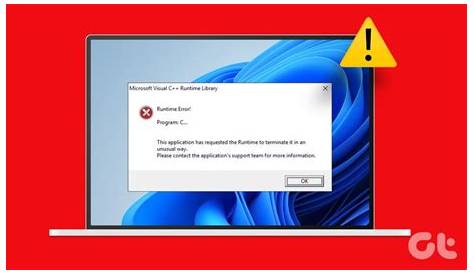
If you're experiencing frustrating error messages on Windows 11, you're not alone. These errors can disrupt your workflow, but many have straightforward solutions. By understanding what these errors mean and how to fix them, you can regain control of your system and improve its stability.
What do those error codes mean?
Common error messages in Windows 11 can often leave users puzzled. Here are some frequent ones:
Error 0x80070057: Parameter is incorrect.
Error 0xC0000005: Access violation.
Error 0xD0000001: Unknown software exception.
Error 0x800F0988: Cannot install updates.These errors usually occur during installations, updates, or application launches, indicating issues such as corrupted files or misconfigured system settings.
When should you troubleshoot?
Not every error requires immediate action. Here’s when to troubleshoot:
- Immediate Action: If an error prevents you from using your system or critical applications.
- Wait and See: If the error appears only once or during a temporary glitch, it might resolve itself after a reboot.
- Look for Patterns: If the error recurs, it's a sign of a deeper issue that needs addressing.
How to fix common Windows 11 errors?
To tackle common Windows 11 errors, follow these steps:
Error 0x80070057: Parameter is incorrect
- Open Settings.
- Navigate to System > Recovery.
- Click on 'Restart Now' under Advanced Startup.
- Select 'Troubleshoot' > 'Advanced Options' > 'Startup Repair'.
Expected Result: The system attempts to repair the issue automatically. If it fails, you may need to reinstall the application that triggered the error.
Error 0xC0000005: Access violation
- Right-click on the Start menu and select 'Windows Terminal (Admin)'.
- Type the following command:
sfc /scannow- Press Enter.
Expected Result: The system scans for and attempts to restore corrupted files. If errors persist, consider checking your RAM or restoring your system to an earlier point.
Error 0x800F0988: Cannot install updates
- Open Settings and navigate to Windows Update.
- Click 'Check for updates'.
- If updates are found, install them.
Expected Result: Updates should install successfully. If not, you may need to reset the Windows Update components manually.
How to verify if the fix worked?
After applying fixes, it’s essential to confirm their effectiveness:
- For the update error, check if your system is up to date by revisiting Settings > Windows Update.
- For access violation errors, try reopening the application that previously crashed. If it runs without issues, the fix likely worked.
- Use the Event Viewer to check logs for any recurring errors, which can indicate if the fix was successful.
How to prevent errors in the future?
To maintain system stability and prevent future errors:
- Keep Software Updated: Regularly install Windows updates and application updates.
- Use Disk Cleanup: Periodically run Disk Cleanup to remove unnecessary files.
- Run Antivirus Scans: Ensure your system is free from malware that can cause instability.
- Regular Backups: Always back up your system to restore it if critical errors occur.
Conclusion
To manage Windows 11 errors effectively, stay informed about common issues and their fixes. Regular maintenance and updates can significantly reduce future errors. If problems persist, consider seeking further assistance or exploring community forums for additional support.
Frequently Asked Questions
What should I do if I still see errors after following the fixes?
If errors persist, consider restoring your system to an earlier point or seeking professional help. Community forums can also be a useful resource for troubleshooting guidance.
Are there tools available to help troubleshoot Windows 11 errors?
Yes, Windows 11 includes built-in troubleshooting tools under Settings > System > Troubleshoot. You can also use third-party software designed for system repair.
Can I prevent all Windows 11 errors?
While you can significantly reduce the occurrence of errors through maintenance and updates, it’s not possible to prevent all errors entirely due to the complexity of software and hardware interactions.
Is it safe to uninstall problematic applications to fix errors?
Yes, if an application consistently causes errors, uninstalling it may resolve the issue. Just ensure you have backups of any important data associated with that application.