If you're a busy professional looking to free up storage space on your device, uninstalling unnecessary applications is a straightforward solution. This article provides step-by-step instructions for uninstalling applications across various operating systems, tips for managing your applications effectively, and advice on resolving common issues during the uninstallation process.
How do I uninstall an application on my device?
Prerequisites
- Administrative rights on your device.
- Ensure the application you want to uninstall is not currently running.
Windows 10/11
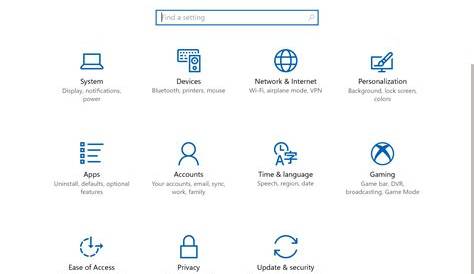
- Click the Start menu and select Settings.
- Choose Apps.
- Locate the application you wish to uninstall in the list.
- Click on the application and select Uninstall. ``
text Follow any prompts to confirm the uninstallation.``
macOS
- Open Finder and go to the Applications folder.
- Locate the application you want to uninstall.
- Drag the application to the Trash, or right-click and select Move to Trash. ``
text Empty the Trash for complete removal.``
Android
- Open the Settings app and select Apps.
- Find and tap on the application you want to uninstall.
- Tap Uninstall. ``
text Confirm the action to remove the app.``
iOS
- Locate the app on your home screen.
- Press and hold the app icon until it wiggles.
- Tap the X that appears on the app icon.
- Confirm by selecting Delete. ``
text The app will be uninstalled from your device.``
By following these steps, you can efficiently uninstall applications from your device.
What if the application won't uninstall?
If an application won’t uninstall, several factors may be at play:
- The application is currently running. Ensure it is closed first.
- You might lack sufficient permissions. Verify you have administrative rights on the device.
- The application files may be corrupted. In this case, try using a dedicated uninstaller tool or reinstalling the application to fix any issues before attempting to uninstall it.
Troubleshooting Steps
- Restart your device and attempt the uninstallation process again.
- Use the Task Manager on Windows or Activity Monitor on macOS to close any running instances of the application.
- If all else fails, consider using third-party uninstaller software for a more thorough removal.
How can I manage my applications after uninstallation?
After uninstalling unnecessary applications, effectively managing the remaining ones is essential for maintaining optimal device performance. Consider these tips:
- Regularly review installed applications. Periodically check for apps you no longer use and uninstall them.
- Keep applications updated. Regular updates can enhance performance and security.
- Organize applications based on usage. Create folders or use tagging features to keep frequently used apps accessible.
- Limit background processes. Some applications run in the background and consume resources, so disable them when not needed.
By actively managing your applications, you can ensure your device runs smoothly.
Are there any risks associated with uninstalling applications?
Uninstalling applications is generally safe, but some risks exist:
- Data loss: Uninstalling applications may also remove associated data. Back up any important information before proceeding.
- System instability: Removing critical applications can lead to system instability. Exercise caution, especially with pre-installed software.
- Dependency issues: Some applications depend on others. Uninstalling one may affect the functionality of another. Always check compatibility before removal.
What are some common FAQs about uninstalling applications?
- Can I reinstall an uninstalled application? Yes, most applications can be reinstalled from their respective app stores or websites.
- Will uninstalling an application speed up my device? Yes, removing unused applications can free up resources and storage, leading to improved performance.
- How do I find out what applications are taking up the most space? On most systems, you can check storage settings to see a breakdown of space usage by application.
Conclusion
After uninstalling unnecessary applications, organize and regularly review your remaining apps for better performance. Keeping your device free of clutter will help it run smoothly and efficiently.
Frequently Asked Questions
Can I reinstall an uninstalled application?
Yes, most applications can be reinstalled from their respective app stores or websites.
Will uninstalling an application speed up my device?
Yes, removing unused applications can free up resources and storage, leading to improved performance.
How do I find out what applications are taking up the most space?
On most systems, you can check storage settings to see a breakdown of space usage by application.