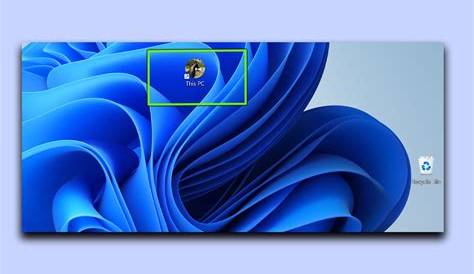
As a new Windows 11 user, the default settings can feel overwhelming, but customizing your experience is easy and can greatly enhance both productivity and enjoyment. This guide will provide you with practical tips to personalize your Windows 11 setup, helping you feel more at home and efficient on your computer.
How do I change the Start menu layout?
To tailor the Start menu to your preferences, you can pin, unpin, and rearrange apps. Here’s how:
- Click on the Start button to open the Start menu.
- To pin an app, locate it in the list or use the search bar. Right-click on the app and select
Pin to Start. - To unpin an app, right-click on the app icon in the Start menu and choose
Unpin from Start. - To rearrange pinned apps, click and hold an app icon, drag it to your desired location within the Start menu, and release the mouse button.
- You can create groups by dragging an app icon next to another icon and naming the group by clicking the title area.
This customization makes it easier to access frequently used apps.
What are the best ways to adjust themes and colors?
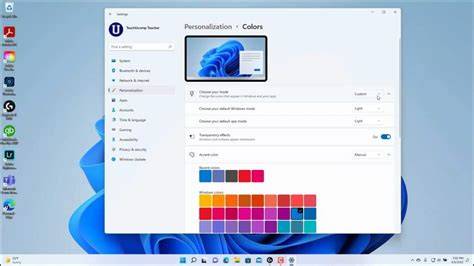
Changing themes and colors can enhance the visual appeal of your Windows 11 experience. To modify these settings:
- Ensure you are logged into your Windows account.
- Right-click on the desktop and select
Personalizefrom the context menu. - Click on
Themesin the left sidebar. - Choose a pre-installed theme or click on
Browse themesto explore more options in the Microsoft Store. - To change colors, click on
Colorsin the left sidebar. You can select light or dark mode, or customize accent colors according to your taste. - Select
Backgroundto change your wallpaper. You can opt for a picture, solid color, or slideshow.
After completing these steps, your desktop will reflect your chosen aesthetic.
How can I organize my desktop and taskbar?
Keeping your desktop and taskbar organized can enhance your workflow. Here are steps to declutter:
- To remove unnecessary icons from the desktop, click on the icon you want to delete and press the
Deletekey. - To create folders, right-click on the desktop, select
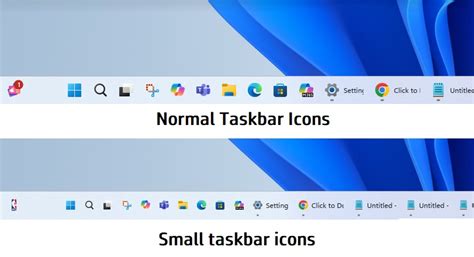
New, thenFolder. Name your folder and drag icons into it to group them. - For the taskbar, right-click on it and choose
Taskbar settings. Here, you can select which icons appear and toggle off any that you don’t need. - To pin apps to the taskbar, open the Start menu, locate the app, right-click on it, and select
Pin to taskbar. - You can rearrange pinned icons by clicking and dragging them to your preferred location on the taskbar.
These organizational tips will provide quick access to your most-used applications.
Why should I manage notifications?
Managing notifications reduces distractions and helps you stay focused. Windows 11 allows you to control which notifications you receive:
- Click on the
Startbutton and selectSettings. - Navigate to
System, then click onNotifications. - Here, you can toggle off notifications entirely or adjust settings for specific apps by scrolling down and selecting the app name.
- You can also choose to display notifications on the lock screen or have a sound play when notifications arrive.
By managing notifications, you can create a quieter workspace and improve your concentration.
What keyboard shortcuts can I customize?
Customizing keyboard shortcuts can enhance your efficiency in Windows 11. Here’s how:
- Open
Settingsby right-clicking the Start button and selecting it from the menu. - Go to
Devices, thenTyping. - Scroll down to find
Advanced keyboard settings. Here, you can manage input methods and customize shortcuts for different languages. - For specific applications, check their settings for customizable shortcuts. For example, in Microsoft Word, go to
File, thenOptions, followed byCustomize RibbonandKeyboard Shortcuts. - Assign new shortcuts by selecting the command and pressing the keys you want to use.
Custom shortcuts can streamline your tasks and improve your workflow.
Conclusion
With these tips for customizing Windows 11, you can create a workspace that reflects your personal style and meets your efficiency needs. Take time to explore these settings and adjust them to enhance your overall experience with your computer.
Frequently Asked Questions
Can I revert back to the default settings after customizing?
Yes, you can revert most settings back to default by going into the respective settings menu and selecting the default options.
Are there any risks in customizing my system settings?
Generally, customizing settings is safe, but be cautious with changes that may affect system performance, such as disabling notifications or services.
How can I reset my Start menu layout if I don't like the changes?
Unfortunately, there’s no one-click reset for the Start menu layout, but you can manually unpin or rearrange apps to your liking.
What if I want to add more color options beyond the default ones?
You can download additional themes and color packs from the Microsoft Store or create your own custom theme using your preferred images.