If you've just upgraded to Windows 11, understanding your licensing options and how to activate your license is essential. You can choose from OEM, Retail, or Volume licenses, each with its own features. Activating your license is a straightforward process, and this guide will help you navigate through the types of licenses, how to activate yours, and troubleshoot any activation issues you might encounter.
What types of Windows 11 licenses are there?
You have three primary types of licenses for Windows 11: OEM, Retail, and Volume.
- OEM (Original Equipment Manufacturer) licenses are pre-installed on devices by manufacturers. They are tied to the hardware and usually cannot be transferred to another computer.
- Retail licenses are purchased separately and can be transferred between devices, provided they are removed from the original device first. These are ideal if you plan to upgrade your hardware frequently.
- Volume licenses are designed for businesses and educational institutions that need to activate multiple copies of Windows efficiently. These licenses often come with additional management tools.
Prerequisites for activating your Windows 11 license
Before you start the activation process, ensure you have the following:
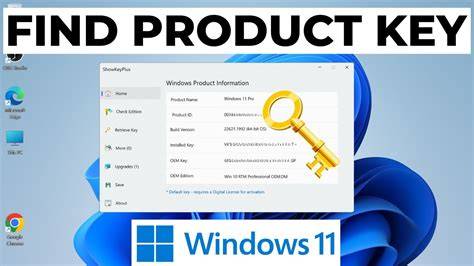
- A valid Windows 11 product key (25 characters).
- An internet connection for online activation.
- Administrative privileges on your device.
How do I activate my Windows 11 license?
Activating your Windows 11 license is a simple process. Here's how to do it:
- Click on the Start menu and select Settings.
- Go to System and then click on Activation.
- If you see a button that says Change product key, click on it.
- Enter your 25-character product key in the field provided and click Next.
- Follow the on-screen prompts to complete the activation.
If the activation is successful, you'll see a message confirming that your Windows is activated.
What common issues might I face during activation?
Several common issues can arise while activating Windows 11:
- Invalid Product Key: Ensure that the product key is entered correctly. It's easy to misread characters.
- Internet Connectivity Issues: Activation requires a stable internet connection. Make sure your device is connected to the internet.
- License Type Restrictions: If you're trying to use an OEM key on a different device, it will not work. Ensure that the key matches the license type.
If you face any of these issues, double-check your input and ensure your internet connection is stable.
How can I check if my Windows 11 license is activated?
To verify the activation status of your Windows 11:
- Open the Settings menu from the Start menu.
- Navigate to System and then click on Activation.
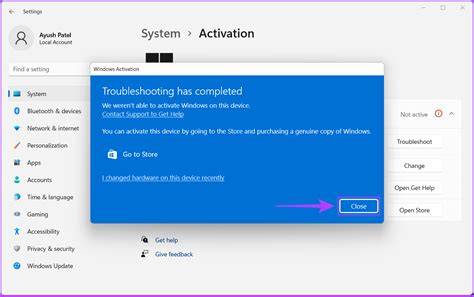
- Look for the activation status at the top of the window. It should indicate whether your Windows is activated or not.
What should I do if my activation fails?
If your activation fails, consider these steps:
- Recheck your product key for any mistakes. Ensure it's the correct key for your license type.
- Restart your computer and attempt the activation process again.
- If activation still fails, contact Microsoft Support for assistance. They can help troubleshoot activation issues.
- Review your license options. If you have an OEM key and are trying to use it on a different device, you may need to purchase a new Retail license.
Conclusion
Now that you understand the types of licenses available and how to activate your Windows 11, you're ready to begin. Keep your product key handy and follow the activation steps. If you encounter any issues, seek help from Microsoft Support.
Frequently Asked Questions
Can I transfer my OEM license to a new computer?
No, an OEM license is tied to the original hardware and cannot be transferred.
What should I do if I lost my product key?
You may need to contact the retailer or Microsoft support for assistance in recovering your product key.