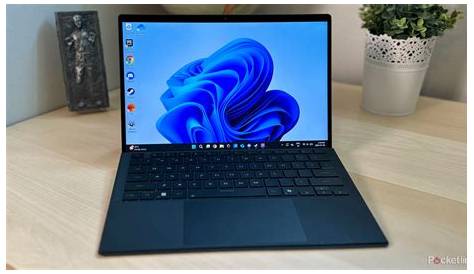
If Windows 11 is running slowly, it could be due to background processes, insufficient RAM, or outdated drivers. To improve performance, you can disable unnecessary startup programs, uninstall unneeded applications, and adjust your system settings. This guide will help you identify common causes of sluggishness and provide step-by-step fixes to enhance your experience.
What could be slowing down my Windows 11?
Several factors can contribute to a slow Windows 11 experience. One of the main culprits is background processes that consume system resources, including apps running without your knowledge, which can deplete your CPU and memory. Insufficient RAM, particularly during demanding tasks like gaming or video editing, can also lead to performance issues. Additionally, a fragmented hard drive or outdated drivers can negatively impact system speed.
How can I check for resource-hogging programs?
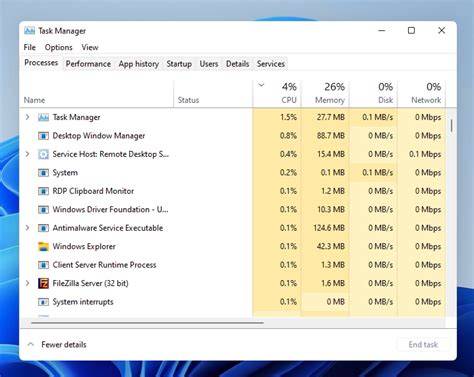
You can use Task Manager to identify applications consuming excessive resources. Here's how:
- Right-click on the Start button and select Task Manager.
- Click on the 'Processes' tab to view running applications and their resource usage.
- Examine the 'CPU' and 'Memory' columns to find programs that are using a high percentage of your resources.
If you notice a specific application consistently hogging resources, consider closing it or uninstalling it if it's unnecessary.
What are the best fixes for a slow system?
Here are several practical solutions to improve your system's performance:
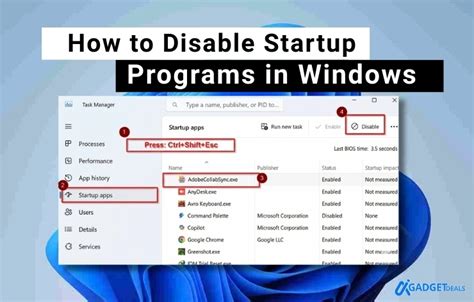
- Disable startup programs: - Open Task Manager, go to the 'Startup' tab, and disable any unnecessary programs that launch at startup.
- Adjust visual effects: - Search for 'Performance Options' in the Start menu, select 'Adjust for best performance,' and apply the changes.
- Uninstall unneeded applications: - Go to Settings > Apps > Apps & features, and remove any applications you no longer use.
These steps can help free up resources and lead to noticeable improvements in system speed.
How do I verify that my fixes worked?
To confirm that your changes improved performance, follow these steps:
- Open Task Manager again and check the CPU and Memory usage under the 'Processes' tab.
- Run your typical applications and observe if they respond faster than before.
If CPU and Memory usage are significantly lower and applications are running more smoothly, your fixes have likely been effective.
What steps can I take to prevent future slowdowns?
To maintain smooth performance on your Windows 11 system over time, consider these tips:
- Regularly update your system software and drivers for optimal performance and security.
- Perform disk cleanup regularly to remove unnecessary files that can slow down your system.
- If you frequently run demanding applications, consider upgrading your RAM.
- Use an SSD instead of an HDD, as SSDs provide faster data access speeds.
Conclusion
If you've followed these steps and your Windows 11 is still slow, consider more in-depth troubleshooting or seeking professional help. Regular maintenance is essential for a fast system, so keep an eye on performance over time.
Frequently Asked Questions
How do I speed up my Windows 11 laptop?
You can speed up your laptop by disabling startup programs, adjusting visual effects, and ensuring your system and drivers are up to date.
What should I do if my computer is still slow after following these steps?
If your computer remains slow, check for hardware issues or consult a professional technician.
Can a virus make my Windows 11 slow?
Yes, malware and viruses can significantly impact your system's performance, so it's advisable to run a full system scan with antivirus software.
How often should I update my Windows 11 system?
It's best to check for updates regularly, ideally every month, to ensure you have the latest features and security improvements.