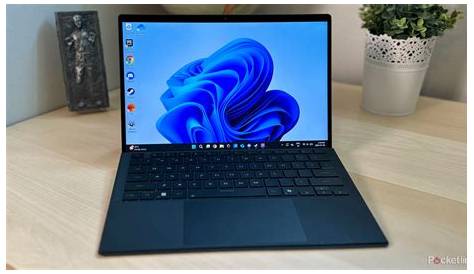
Windows 11 updates are vital for your device's performance and security. They consist of regular security patches and larger feature updates that enhance functionality, allowing your system to run smoothly and safely.
What are Windows 11 updates and why do they matter?
Windows 11 updates come in two main types: feature updates and cumulative updates. Feature updates are released approximately twice a year, introducing significant new features and enhancements. Cumulative updates, in contrast, are smaller patches that focus on fixing bugs and addressing security vulnerabilities. Both types are essential for the efficient and secure operation of your device.
A timeline of major Windows 11 updates
Since its launch in October 2021, Windows 11 has undergone several major updates:
- October 2021: Initial release of Windows 11 featuring a redesigned interface, a new Start menu, and improved virtual desktops.
- February 2022: First major feature update, introducing enhancements to the taskbar and improved touch controls.
- May 2022: A significant update that added features like new widgets and enhanced gaming options for a superior user experience.
- September 2022: Introduced new accessibility features and performance improvements to enhance system stability.
- February 2023: Focused on security enhancements, including updates to Microsoft Defender and improved ransomware protection.
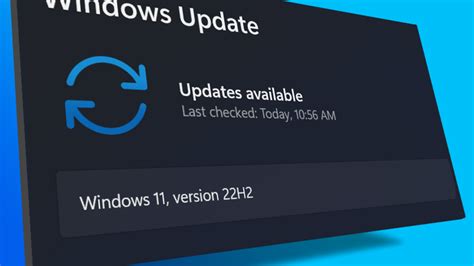
How updates improve user experience and security
Each update addresses specific user feedback and security vulnerabilities. For instance, the February 2023 update enhanced Microsoft Defender based on user concerns regarding security. Updates typically include performance improvements, bug fixes, and new features that streamline workflows, making tasks simpler and more efficient. The introduction of new widgets in the May 2022 update allowed users to access important information quickly.
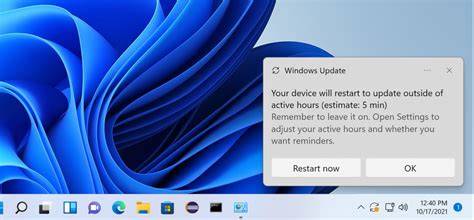
Common misconceptions about Windows 11 updates
Many users believe that updates always lead to problems or slow down their devices. While some users may experience issues after an update, these instances are often exceptions. Updates are primarily designed to resolve known issues, enhance security, and improve overall performance. Another misconception is that updates are optional; however, many updates, especially security patches, are critical for protecting your device and data.
What to do if an update causes issues
If you encounter problems after an update, take the following steps to troubleshoot:
- Restart your device to see if the issue resolves itself.
- Check for additional updates, as Microsoft may release fixes soon after a major update.
- Roll back the update if it significantly affects your device.
Settings > Update & Security > Windows Update > View update history > Uninstall updates- Use the Windows Recovery Environment to restore your system to a prior state if necessary.
Conclusion
To keep your Windows 11 device secure and functioning well, stay informed about updates and install them promptly. Regularly check for updates and engage with the update history to understand the changes made. This proactive approach can help you maximize your system's performance and security.