If your Windows 11 computer won't boot, don't panic. This issue often stems from hardware problems, corrupted files, or driver conflicts, but there are several recovery methods you can try to resolve it. By identifying the symptoms and following step-by-step recovery options, you can troubleshoot and potentially fix the issue.
What does it mean when Windows 11 won't boot?
When Windows 11 won't boot, you may encounter specific symptoms indicating a boot failure. Common signs include:
- A black screen with no activity.
- The system freezing on the Windows logo.
- Error messages such as 'Inaccessible Boot Device' or 'Automatic Repair Loop'.
- The system restarting repeatedly without loading Windows.
- A blue screen with an error code.
These symptoms can appear right after powering on your device or during the Windows loading process.
Inaccessible Boot Device
Automatic Repair LoopWhat causes Windows 11 boot problems?
Boot issues in Windows 11 can arise from various sources. Common causes include:
- Hardware failures: Problems with your hard drive, RAM, or motherboard can prevent Windows from booting.
- Corrupted files: System files can become corrupted due to improper shutdowns, malware, or software conflicts.
- Driver issues: Outdated or faulty drivers can lead to boot failures.
- Recent updates: Sometimes, Windows updates can cause conflicts that prevent your computer from booting properly.
- BIOS settings: Incorrect BIOS configurations can hinder the boot process.

How to troubleshoot Windows 11 boot issues
If you're facing boot problems, here are step-by-step methods to troubleshoot:
Method 1: Use Startup Repair
- Power on your computer and interrupt the boot process by turning it off and on three times.
- On the third restart, Windows will enter the Recovery Environment.
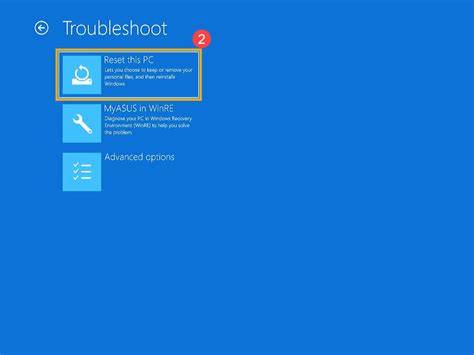
- Select Troubleshoot > Advanced options > Startup Repair.
- Choose your account and enter your password if prompted. The system will attempt to repair itself. If it succeeds, you'll be directed to your desktop. If not, proceed to the next method.
Method 2: Boot into Safe Mode
- Again, interrupt the boot process three times to enter the Recovery Environment.
- Choose Troubleshoot > Advanced options > Startup Settings.
- Click Restart. After your PC restarts, press F4 to start in Safe Mode. In Safe Mode, you can uninstall problematic software or drivers or run virus scans.
Method 3: Check for Hardware Issues
- Power off and unplug your computer.
- Open your case and check connections for your hard drive and RAM.
- Reseat the RAM and any removable components. If the issue persists after checking hardware, consider using a recovery drive or installation media to access recovery options.
How to verify if the issue is resolved
After implementing the recovery methods, check if your computer boots correctly. Here’s how:
- Restart your computer to see if it boots normally.
- Check for any error messages during startup. If no messages appear and Windows loads successfully, the issue is likely resolved.
- Monitor system performance for stability, ensuring no unexpected restarts or freezes occur.
Preventing future boot issues
To avoid boot problems in the future, consider these maintenance tips:
- Keep your system updated, but review updates before installation to ensure compatibility.
- Regularly run antivirus scans to catch malware early.
- Use disk cleanup tools to remove unnecessary files and free up space.
- Create restore points before making significant changes or installing new software.
- Maintain backups of important files to prevent data loss during unexpected failures.
Conclusion
If your Windows 11 system still won't boot after trying these methods, you may need to explore professional repair options or consider reinstalling the operating system. Regular maintenance and prompt attention to issues can help reduce the likelihood of future boot problems.
Frequently Asked Questions
What should I do if Startup Repair fails?
If Startup Repair fails, try booting into Safe Mode to troubleshoot further, or consider using a recovery drive to access more advanced repair options.
Can hardware issues cause Windows 11 not to boot?
Yes, hardware issues such as failing hard drives or faulty RAM can prevent Windows 11 from booting properly.
How can I create a recovery drive for Windows 11?
You can create a recovery drive by searching for 'Create a recovery drive' in the Start menu and following the prompts to back up system files onto a USB drive.
Is it safe to perform a system reset if nothing else works?
Yes, but be aware that a system reset will remove your applications and settings, so it should be a last resort after backing up your important data.