Activating Windows 11 is crucial for gaining access to all its features after installation or upgrade. You can activate your operating system using either a digital license or a product key. This guide will walk you through the activation process and help you troubleshoot common issues.
Prerequisites
Before activating Windows 11, ensure you have the following:
- A valid digital license or product key.
- An internet connection for online activation.
- A Microsoft account if you're using a digital license.
What methods can I use to activate Windows 11?
There are two primary methods to activate Windows 11: using a digital license or entering a product key.
A digital license is linked to your Microsoft account and is automatically applied when you log in, provided you've upgraded from a genuine copy of Windows 10 or purchased a new device that comes with Windows 11 pre-installed.
Alternatively, if you've purchased a product key separately, you can enter it during activation. This key is usually found on a card inside the box or in a confirmation email if you bought it online.
How do I activate Windows 11 using a product key?
To activate Windows 11 using a product key, follow these steps:
- Click on the Start menu and select Settings.
- In the Settings window, select Update & Security.
- Click on Activation in the left sidebar.
- Click on Change product key. ``
text Enter your product key here`` - Type your 25-character product key and click Next.
- Follow the on-screen instructions to complete the activation process.
If the key is valid, you should see a message confirming that Windows is activated.
What if I encounter an activation error?
If you run into an activation error, here are some common issues and their fixes:
- Error Code 0xC004C003: This indicates that the license key is not valid. Double-check the key for any mistakes.
- Error Code 0x8007007B: This means the product key is not recognized. Ensure you're using the correct key for your version of Windows.
- Error Code 0xC004F034: This error suggests the activation server can't be reached or the key has been used too many times. Try again later or contact Microsoft support.
For many errors, running the Activation Troubleshooter can help. To do this, go to Settings > Update & Security > Activation and select Troubleshoot.
What if I lost my product key?
If you've lost your product key, there are a few options to recover or replace it:
- Check your email: If you bought Windows 11 online, the key should be in your confirmation email.
- Look in the original packaging: If you purchased a physical copy, the key is usually found on a card inside the box.
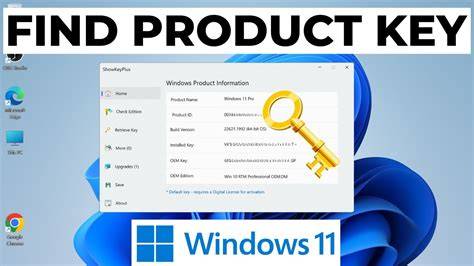
- Use a key finder tool: Software like ProduKey can help you retrieve the product key from your system if it was previously activated.
If you cannot recover the key, you may need to purchase a new one from Microsoft or an authorized retailer.
How can I verify that my Windows 11 is activated?
To check if your Windows 11 is activated:
- Open the Start menu and select Settings.
- Go to Update & Security and then select Activation.
Here, you should see a message indicating whether Windows is activated. If it says "Windows is activated with a digital license" or similar, you’re all set. If it’s not activated, you’ll see the option to activate it.
Conclusion
Once you've activated Windows 11, you can enjoy all its features without restrictions. If you encounter any issues during the process, revisit the steps or consult support. Now, you can explore the new features and personalize your system to your liking.