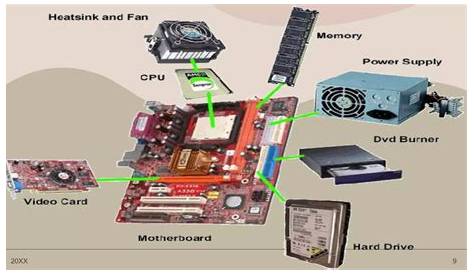
If your computer suddenly stops working, it can be incredibly frustrating. The issue is often linked to hardware failures, which can cause symptoms like unusual noises or a complete failure to boot. This guide will help you quickly identify hardware issues and provide straightforward steps and tools for diagnosing and resolving them.
What are the common symptoms of hardware failures?
Hardware failures can manifest in several ways. Some common symptoms to look out for include:
- Failure to boot: If your computer doesn't power on or gets stuck at a boot screen, it points to a potential hardware issue.
- Unusual noises: Grinding, clicking, or beeping sounds can indicate failing components like hard drives or fans.
- Frequent crashes or freezes: Regular system crashes or freezes might be due to faulty hardware.
- Error messages: Specific error messages can offer clues. For instance, a hard drive failure message suggests that you may need to replace that component.
If you experience any of these symptoms, it's crucial to diagnose the issue promptly.
What tools do I need to diagnose hardware issues?
Before diving into troubleshooting, gather the right tools. Essential diagnostic tools include:
- Memtest86: A free tool to check your RAM for errors.
- CrystalDiskInfo: This software helps monitor hard drive health.
- HWMonitor: Useful for checking the temperature and voltage of various components.
- Screwdriver set: A basic tool for opening your computer case to inspect hardware components physically.
Having these tools at hand can streamline your diagnostic process.
How do I troubleshoot and identify the failing component?
Follow these steps to systematically test your hardware components:
- Check power connections: Ensure all power cables are secure.
- Inspect physical components: Open the case and look for any obvious signs of damage, like burnt components or loose connections.
- Test RAM: Run Memtest86 to check for memory errors. Boot from a USB containing the software and let it complete the test. ``
text Boot from USB Select Memtest86 Run the test`` - Check hard drive health: Use CrystalDiskInfo to check for any warnings or errors. Install and run the software, and review the health status of your drives. ``
text Open CrystalDiskInfo Check health status`` - Test other components: If RAM and hard drives are fine, check other components like the power supply and graphics card. If possible, swap them with known good components.
How can I verify that I have identified the correct issue?
Once you suspect a component is faulty, confirm your diagnosis before taking further action. Here’s how:
- Check error codes/messages: If specific error messages appear, look them up to see if they indicate a particular issue.
- Run stress tests: For components like the CPU or GPU, use tools like Prime95 for the CPU or FurMark for the GPU to see if they can handle stress without crashing. ``
text Run Prime95 Monitor temperature and stability`` - Observe behavior changes: After replacing a suspected faulty component, see if the symptoms persist. If they don't, you have likely identified the correct issue.
What preventive measures can I take to avoid future hardware failures?
To prolong the life of your hardware and prevent future failures, consider these preventive measures:
- Regular cleaning: Dust can accumulate inside your computer, causing overheating. Clean the interior every few months.
- Keep software updated: Ensure your operating system and drivers are up-to-date to avoid compatibility issues.
- Monitor temperatures: Use tools like HWMonitor to keep an eye on component temperatures and ensure they remain within safe ranges.
- Use surge protectors: Protect your hardware from power surges, which can damage components.
Conclusion
After diagnosing and addressing any hardware failures, monitor your system's performance regularly. Ongoing maintenance can help you catch potential issues early, ensuring your hardware remains reliable for your needs.
Frequently Asked Questions
What should I do if my computer won't turn on?
Check the power supply connection and ensure the outlet is working. If everything looks fine, test the power supply with a multimeter or try a different outlet.
How can I tell if my hard drive is failing?
Look for symptoms like unusual noises, frequent crashes, or error messages related to the hard drive. Use software like CrystalDiskInfo to check the health status of your drive.
Is it safe to open my computer case?
Yes, as long as you take precautions such as grounding yourself to prevent static discharge and ensuring the computer is unplugged before opening the case.
What is the best way to clean my computer components?
Use compressed air to blow out dust from components. Avoid using liquid cleaners inside the case, and ensure the computer is powered off and unplugged before cleaning.