If you're looking to upgrade your operating system, downloading Windows 11 can enhance your computer's performance and provide access to new features. This guide walks you through the download process, ensuring you meet the necessary requirements and can address any issues that arise. Follow these steps to get Windows 11 installed on your machine smoothly.
What do I need to download Windows 11? [prerequisites]
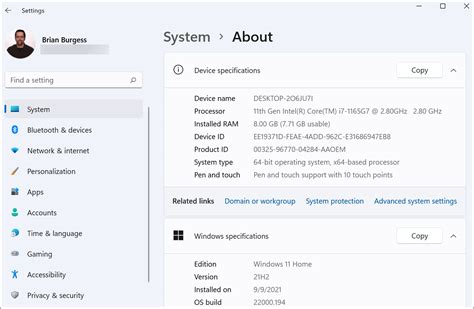
Before you start downloading Windows 11, ensure your system meets the following minimum requirements:
- A compatible 64-bit processor with at least 1 GHz clock speed and 2 or more cores.
- 4 GB of RAM or more.
- At least 64 GB of available storage.
- UEFI firmware with Secure Boot capability.
- TPM version 2.0.
- A DirectX 12 compatible graphics card or integrated GPU.
- A display greater than 9 inches with HD resolution (720p).
To check for compatibility, use Microsoft's PC Health Check tool, which can analyze your system and confirm if it meets the requirements.
How do I download Windows 11? [steps]
Follow these steps to download Windows 11:
- Visit the official Microsoft Windows 11 download page.
- Choose the appropriate download option: - If you want to upgrade your current PC, select the 'Upgrade Now' option. - If you prefer to create installation media, select the 'Download now' button under 'Create Windows 11 Installation Media'.
- If creating installation media, run the Media Creation Tool you downloaded.
- Select 'Create installation media (USB flash drive, DVD, or ISO file) for another PC'.
- Choose your preferred language, edition, and architecture (64-bit).
- Select either 'USB flash drive' or 'ISO file' based on your needs.
- Follow the prompts to complete the download.
Ensure you have a stable internet connection throughout the download process to avoid interruptions.
What if I encounter errors while downloading? [completion]
During the download process, you might run into some common issues. Here are a few error messages and how to resolve them:
- Error: This PC can't run Windows 11: This usually means your system does not meet one of the minimum requirements. Double-check your hardware specifications and ensure TPM 2.0 and Secure Boot are enabled in the BIOS.
- Error: Download failed: If this happens, check your internet connection. You might also want to try restarting the Media Creation Tool or your computer.
- Error: Insufficient storage: Ensure you have at least 64 GB of free space on your drive. If not, consider deleting unnecessary files or using an external drive for installation media.
How can I verify the download was successful? [verify]
After the download completes, you can verify its success by checking for the Windows 11 installation files. If you used the Media Creation Tool:
- Navigate to the USB drive or folder where you saved the installation files.
- Ensure you see files like
setup.exeandinstall.wim. If these are present, the download was successful.
If you upgraded directly:
- You should see a notification prompting you to restart your PC to finalize the installation. You can also check in the Windows Update settings to confirm that Windows 11 is ready for installation.
What should I do if my PC isn't compatible? [faq]
If your PC doesn't meet the requirements for Windows 11, you have a few options:
- Upgrade your hardware: Consider upgrading components such as your CPU, motherboard, or adding a TPM module if needed.
- Stay with Windows 10: Windows 10 will continue to receive support and updates until October 14, 2025, giving you time to plan your next steps.
- Explore alternatives: If you prefer to stick with a newer OS, you might explore other operating systems that are less demanding on hardware.
Conclusion
After downloading Windows 11, follow the on-screen prompts to complete the installation process. Remember to back up any important files before proceeding. Once installed, take some time to familiarize yourself with the new features and interface.