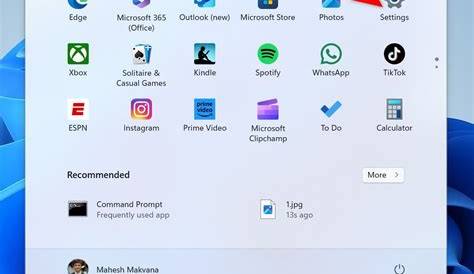
If you prefer a darker interface while using Windows 11, enabling dark mode is a simple process. This feature reduces eye strain in low-light conditions and enhances the aesthetic appeal of your desktop. Here’s how you can enable dark mode quickly and easily.
Where do I find dark mode settings? [prerequisites]
To access the dark mode settings in Windows 11, you need to open the Settings menu. Here’s what you need before starting:
- Ensure your Windows 11 is up to date.
- Have administrator privileges to make changes in Settings.
How to enable dark mode step-by-step [steps]
Enabling dark mode in Windows 11 involves a few simple steps:
- Click on the Start button (Windows logo) on the taskbar.
- Select Settings (the gear icon).
- In the Settings window, click on Personalization.
- Choose Colors from the left sidebar.
- Under the Choose your mode section, select Dark.
- Close the Settings window to apply the changes.
Changing display settings may affect how applications appear, so check your favorite apps after enabling dark mode.
Can I customize dark mode settings? [completion]
Yes, you can customize dark mode settings in Windows 11. Once you've enabled dark mode, you can adjust accent colors:
- In the Colors section of the Personalization settings, scroll down to Accent color.
- Choose a color that suits your taste, or let Windows pick an accent color based on your background.
- Additionally, toggle Show accent color on Start and taskbar to enhance the overall look of your interface.
What to do if dark mode doesn’t work? [faq]
If dark mode isn’t activating as expected, try these troubleshooting steps:
- Ensure your Windows 11 version is up to date by checking for updates in the Settings menu.
- Restart your computer, as a reboot can often resolve minor glitches.
- Check if any third-party applications are overriding Windows settings. Some apps may have their own themes that interfere with the system-wide dark mode.
Are there any drawbacks to using dark mode? [faq]
While dark mode has many benefits, there are a few potential drawbacks to consider:
- Battery Usage: On OLED screens, dark mode can save battery life, but on LCD screens, it may not make a significant difference.
- Visibility Issues: In bright environments, dark mode can sometimes make text harder to read, particularly if there’s glare on the screen.
Conclusion
After enabling dark mode, you can enjoy a more comfortable viewing experience tailored to your preferences. If you wish to switch back to light mode, simply follow the same steps and select **Light** instead of **Dark**. You can adjust other settings as needed to create the ideal workspace for yourself.
Frequently Asked Questions
Can I set dark mode to turn on automatically?
Windows 11 does not have a built-in option to schedule dark mode, but you can use third-party applications to achieve this.
Does dark mode affect all apps?
Not all applications support dark mode, but many popular apps offer themes that match the system settings.
Is dark mode better for my eyes?
Dark mode can reduce eye strain in low-light conditions, but it may not be suitable for everyone, depending on personal preference.
Can I use dark mode with a light-themed wallpaper?
Yes, you can use any wallpaper you like with dark mode enabled; the two can complement each other depending on your color choices.