If you're experiencing a Windows 11 update error, it means your system can't download or install updates due to various issues. Common reasons include insufficient disk space, incompatible hardware, or problems with Windows Update components. Fortunately, you can follow several troubleshooting steps to resolve these issues and get your computer back up and running.
What does the Windows 11 update error mean?
When you encounter a Windows 11 update error, it typically appears as a specific error code. Here are some common ones:
Error 0x8007000E
Error 0x8007001F
Error 0x800F0922
Error 0x80080005- Error 0x8007000E: Indicates insufficient memory resources.
- Error 0x8007001F: Often related to device driver issues.
- Error 0x800F0922: Usually occurs when the update service cannot access required system files.
- Error 0x80080005: Points to permission issues or problems with Windows Update services.
These error codes suggest different underlying issues that need to be addressed to successfully complete your updates.
When might you encounter a Windows 11 update error?
Windows 11 update errors can occur in various situations, including:
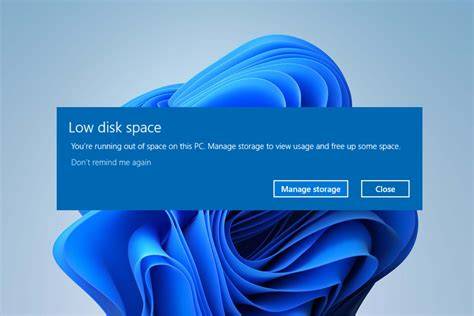
- Insufficient Disk Space: If your hard drive is nearly full, Windows cannot download and install updates.
- Incompatible Hardware: Some hardware configurations may not support the latest updates.
- Network Connectivity Issues: A weak or unstable internet connection can prevent updates from being downloaded.
- Corrupted Update Files: Failed previous updates may cause conflicts.
- Third-party Software: Certain antivirus programs or firewall settings can interfere with the update process.
Identifying the cause can help you choose the right solution.
How can you fix the Windows 11 update error?
Here are several steps to troubleshoot and fix common Windows 11 update errors:
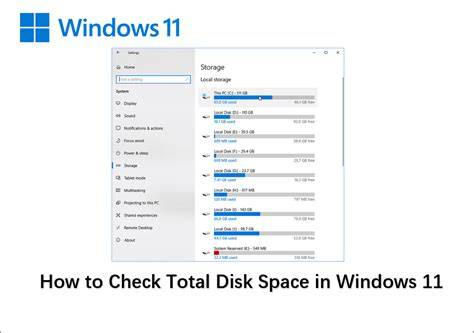
- Check Disk Space: Ensure you have enough space on your hard drive. - Go to Settings > System > Storage to view available space.
- Run Windows Update Troubleshooter: This built-in tool can automatically find and fix problems. - Go to Settings > System > Troubleshoot > Other troubleshooters and select Run under Windows Update.
- Reset Windows Update Components: This can fix issues with corrupted update files. - Open Command Prompt as Administrator and enter: ``
cmd title="Command Prompt" net stop wuauserv net stop cryptSvc net stop bits net stop msiserver net start wuauserv net start cryptSvc net start bits net start msiserver`` - Free Up Disk Space: Delete unnecessary files. - Open Settings > System > Storage > Temporary files and remove unwanted files.
- Check for Incompatible Software: Temporarily disable or uninstall third-party antivirus software if you suspect it may be blocking the update.
How to verify if the update was successful?
After attempting the fixes, you should check if the update has been successfully applied:
- Go to Settings > Windows Update.
- Click on Check for updates.
- If you see a message that your device is up to date, the update has been successfully applied.
If updates are still failing, you may see error codes again. Address those specific errors accordingly.
What can you do to prevent future update errors?
To minimize the chances of encountering update errors in the future:
- Regularly Free Up Disk Space: Keep your hard drive clean to ensure there's always room for updates.
- Update Drivers: Ensure all your hardware drivers are up to date to avoid compatibility issues.
- Run Windows Update Regularly: Check for and install updates on a consistent basis to keep your system current.
- Maintain System Health: Use built-in tools such as Disk Cleanup and Defragment and Optimize Drives to keep your system running smoothly.
- Backup Your System: Regular backups can help restore your system if an update causes significant issues.
Conclusion
If you continue facing issues after trying these steps, consider seeking assistance from Microsoft Support or community forums. Regular maintenance and timely updates can help keep your system stable and less prone to update errors.