If you've just purchased a new computer or upgraded to Windows 11, you might feel unsure about how to set it up and navigate its features. This guide will help you get started with clear instructions on checking system requirements, installing Windows 11, and customizing your interface to fit your needs.
What do I need to know before installing Windows 11? [prerequisites]
Before you install Windows 11, ensure your computer meets the minimum system requirements. Here’s what to check:
- Processor: 1 GHz or faster with at least two cores on a compatible 64-bit processor.
- RAM: 4 GB or more.
- Storage: 64 GB or larger storage device.
- System firmware: UEFI, Secure Boot capable.
- TPM: Trusted Platform Module (TPM) version 2.0.
- Graphics card: DirectX 12 compatible with WDDM 2.x driver.
- Display: >9” with HD Resolution (720p).
You can check these specifications in your computer’s settings or by using tools like the PC Health Check app from Microsoft.
How do I install Windows 11? [steps]
Installing Windows 11 can be done via a USB drive or through Windows Update if you're upgrading from Windows 10. Here’s how to do both:
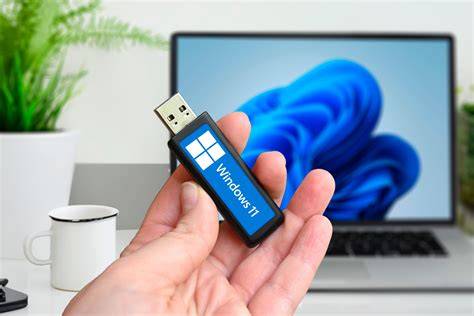
- Create a bootable USB drive (if needed): Download the Windows 11 installation tool from Microsoft and follow the prompts to create a bootable USB drive.
- Insert the USB drive into your computer.
- Restart your computer. You may need to press a key (like F2, F12, DEL, or ESC) during startup to access the boot menu.
- Select the USB drive as the boot device. This should start the Windows 11 setup process.
- Choose your language and preferences. Click "Next" when prompted.
- Click on "Install Now".
- Enter your product key (if you have one). If you don’t have a key, you can select "I don’t have a product key" to continue.
- Select the Windows 11 edition you want to install. Click "Next".
- Accept the license terms. Check the box and click "Next".
- Choose the installation type: Select "Custom: Install Windows only (advanced)" for a fresh installation.
- Select the drive where you want to install Windows 11. Click "Next" to start the installation.
Once the installation is complete, your computer will restart, and you will see the Windows 11 setup screen.
How can I set up my new Windows 11 interface? [completion]
After installation, you can customize your Windows 11 interface to suit your preferences. Here are key settings to consider:
- Personalization: Right-click on the desktop and select "Personalize" to change the background, colors, and themes.
- Taskbar Settings: Right-click on the taskbar and choose "Taskbar settings" to adjust icon display and taskbar features.
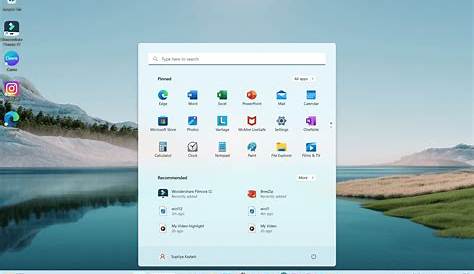
- Start Menu Customization: Click the Start button to open the menu, where you can pin your favorite apps for easy access.
- Widgets: Access widgets by clicking the widget icon on the taskbar to see news, weather, and your calendar.
- Settings: Open the Settings app by pressing
Windows + Ito explore more options, including System, Devices, and Privacy settings.
You should feel comfortable navigating and customizing your experience after these adjustments. Your changes will be reflected immediately, allowing you to enjoy a tailored interface.
What common issues might I face after installation? [faq]
After installing Windows 11, you might encounter some common issues:
- Compatibility Problems: Some older applications or devices might not work correctly. Check for updates or patches from the developers.
- Driver Issues: If you notice hardware not functioning properly, visit the manufacturer’s website to download the latest drivers.
- Performance Sluggishness: If your computer is running slowly, check for updates and consider optimizing startup programs through the Task Manager.
- Activation Problems: If you have issues activating Windows, ensure you're using the correct product key and that your internet connection is stable.
Where can I find additional help and resources? [faq]
For more help and resources on Windows 11, consider:
- Microsoft Support: The official Microsoft support website provides detailed articles and troubleshooting guides.
- Community Forums: Engaging in community forums can help you find answers to specific questions from other Windows 11 users.
- YouTube Tutorials: Many creators offer visual guides that can help you understand features and settings.
Conclusion
Now that you’ve installed Windows 11 and customized your interface, take some time to explore its features and settings. If you encounter any issues, refer to the troubleshooting tips or seek assistance from Microsoft's support resources.
Frequently Asked Questions
What if my PC doesn't meet the system requirements?
If your PC doesn't meet the minimum system requirements for Windows 11, you may need to upgrade your hardware or continue using your current version of Windows.
Can I upgrade from Windows 10 to Windows 11 for free?
Yes, if your device is compatible with Windows 11, you can upgrade for free through Windows Update.
How do I check if my PC is compatible with Windows 11?
You can use the PC Health Check tool from Microsoft to determine if your PC meets the requirements for Windows 11.