If your Windows PC has crashed or is experiencing significant problems, there are several effective recovery methods available. Common issues include blue screens, system freezes, and failures to boot. By following the steps outlined below, you can troubleshoot and restore your system while also taking measures to prevent future problems.
What are the common symptoms of Windows problems?
You might notice several symptoms when your Windows PC is having issues. Here are some of the most common:
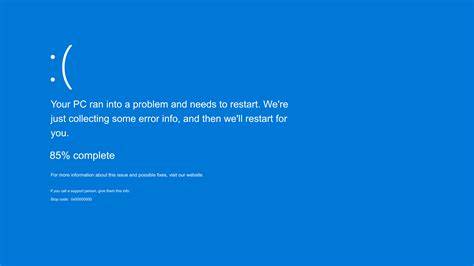
- Blue Screen of Death (BSOD): This usually appears when there is a critical error.
Error: UNEXPECTED_KERNEL_MODE_TRAP- System Freezes: Your computer may become unresponsive during use.
- Failure to Boot: The computer might get stuck on the boot screen or show errors preventing it from starting up completely.
Identifying these symptoms can help you understand the specific issue you're facing.
Before you start
This guide applies to Windows 10 and Windows 11. Make sure you have Administrator privileges to perform these recovery methods. You may need to restart your PC, and it's advisable to back up your important files if possible.
What recovery methods can I use?
There are several methods to recover your Windows PC. Here are the most effective ones:
1. Boot into Safe Mode
Safe Mode starts Windows with a minimal set of drivers and services. This can help you troubleshoot issues.
- Restart your computer.
- As it boots, repeatedly press F8 until the Advanced Boot Options menu appears.
- Select Safe Mode and press Enter.
2. Use System Restore
System Restore allows you to revert your PC to a previous state without affecting your files.
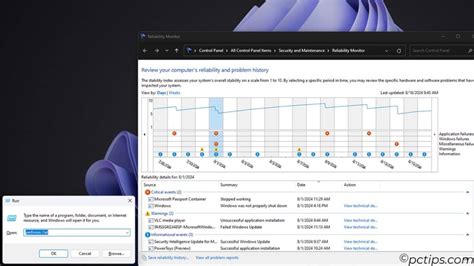
- Press Windows + R to open the Run dialog.
- Type
rstrui.exeand press Enter. - Follow the prompts to choose a restore point and start the restoration process.
3. Access the Recovery Environment
If the previous methods fail, you can access the Recovery Environment.
- Restart your PC and interrupt the boot process three times to access the Recovery Environment.
- Select Troubleshoot > Advanced options > Startup Repair.
- Follow the on-screen instructions to attempt a repair.
How can I verify if my recovery worked?
After following recovery methods, you need to confirm that your system is stable again. Here’s how:
- Restart your computer and observe if it boots normally without errors.
- Monitor for any recurring issues like freezes or crashes during regular use.
- You can also run Windows Memory Diagnostic or Check Disk to verify system integrity.
To run Check Disk:
- Open Command Prompt as Administrator.
- Type
chkdsk /fand press Enter.
If no errors are found and your system runs smoothly, your recovery was successful.
What can I do to prevent future problems?
Taking preventative measures can help you avoid similar issues in the future:
- Regularly Update Windows: Ensure your system is always running the latest updates.
- Use Antivirus Software: Protect your PC from malware that can cause problems.
- Backup Your Data: Regular backups ensure that you can recover your files in case of a system failure.
- Monitor System Performance: Use built-in tools like Task Manager or Resource Monitor to keep an eye on system performance and catch potential issues early.
What should I do if these methods don't work?
If the recovery methods fail, consider these alternatives:
- Seek Professional Help: A technician can diagnose and fix complex issues.
- Perform a Clean Installation: As a last resort, you can reinstall Windows, which will erase your files and settings. Make sure to back up your data first.
This step is irreversible and should only be used when all else fails.
Conclusion
If your recovery attempts are successful, continue to monitor your system for any signs of trouble. Otherwise, consider professional assistance or a clean installation to fully resolve persistent issues.
Frequently Asked Questions
What should I do if I can't access Safe Mode?
If you can't access Safe Mode, try using the Recovery Environment to perform a Startup Repair or System Restore.
Will System Restore delete my files?
No, System Restore does not delete personal files, but it may remove installed programs and drivers.
How can I backup my data before a clean installation?
You can use external drives, cloud storage, or Windows Backup to save your files before reinstalling Windows.
What tools can I use to monitor system performance?
You can use built-in tools like Task Manager or Resource Monitor to check system performance.