If your Windows PC is running slowly, resetting it can help restore its performance. You can choose to keep your personal files or remove everything for a fresh start. This guide will outline different methods for resetting your PC, how to back up important files, and the steps needed for a successful reset.
What does resetting a Windows PC do?
Resetting a Windows PC reinstalls the operating system, which can help resolve issues like slow performance or software conflicts. You can choose to reset while keeping your files, preserving personal documents, photos, and other data, or you can remove everything for a clean slate. Keeping files is useful for minor refreshes, while removing everything is better for addressing deeper problems.
Prerequisites
Before resetting your Windows PC, ensure you have the following:
- A backup of your important files (see the next section).
- Administrator access to your computer.
- An external storage device if you plan to back up your files.
How to back up your important files before resetting
Backing up your important files is essential to avoid any data loss. Here’s how to create a backup using built-in Windows tools:
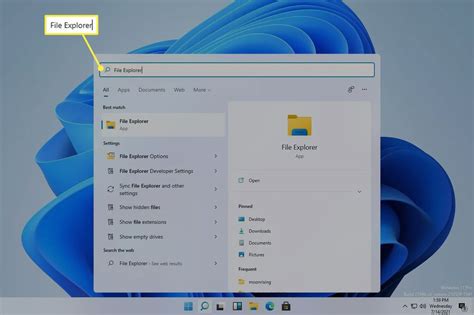
- Open the File Explorer by clicking the folder icon on your taskbar.
- Navigate to the files or folders you want to back up.
- Right-click on the selected files or folders, then click Copy.
- Connect an external storage device (like a USB drive or external hard drive) to your PC.
- In File Explorer, locate your external device in the left sidebar.
- Right-click inside the external device window and select Paste to transfer your files.
Ensure you’ve copied all necessary files, as resetting your PC may lead to data loss.
Steps to reset your Windows PC
Resetting your Windows PC is straightforward. Here’s how:
- Click the Start button and select Settings (the gear icon).
- In the Settings menu, choose Update & Security.
- Click on Recovery in the left sidebar.
- Under the Reset this PC section, click Get started.
- Choose whether to Keep my files or Remove everything.
- If you selected Remove everything, you will be prompted to choose whether to remove files from the drive where Windows is installed or from all drives. Select your preference.
- Follow the on-screen instructions to complete the reset process.
If you choose to remove everything, all your personal files and apps will be deleted.
What to expect after the reset
After resetting your PC, Windows will go through an initial setup process similar to when you first purchased your device. You will need to select your region, keyboard layout, and possibly sign in with your Microsoft account. If you chose to keep your files, your personal data should be intact, but you may need to reinstall some applications. If you removed everything, you’ll have a clean Windows installation and will need to set everything up from scratch.
Common issues after resetting a PC and how to fix them
After the reset, you might encounter some common issues:
- Missing drivers: If certain hardware isn’t functioning, check Device Manager for driver issues. You can download the latest drivers from the manufacturer’s website.
- Software reinstallation: Some applications may need reinstallation. Ensure you have the installation files or access to software download links.
- Slow performance: If your PC remains slow, other factors like insufficient RAM or hard drive space may be the cause. Consider upgrading your hardware if needed.
If you experience any issues, refer to the Windows support site for additional troubleshooting steps.
Conclusion
After completing the reset, take some time to set up your applications and preferences. Regularly backing up your files can help prevent data loss in the future. If you encounter problems, refer to the troubleshooting tips or seek assistance from Windows support.
Frequently Asked Questions
Will resetting my PC remove my files?
It depends on the option you choose during the reset process. If you select 'Keep my files,' your personal files will remain intact. If you choose 'Remove everything,' all files will be deleted.
How long does it take to reset a Windows PC?
The time it takes to reset your PC varies based on the option you choose and the speed of your hardware, but it can typically take anywhere from 20 minutes to a couple of hours.
What should I do if my PC doesn't reset properly?
If your PC fails to reset properly, try restarting your computer and attempting the reset again. You may also want to consider using recovery media or contacting Windows support for assistance.
Can I reset my PC without losing my installed programs?
If you choose to keep your files during the reset, your personal files will remain, but most installed programs will be removed. You will need to reinstall applications afterward.