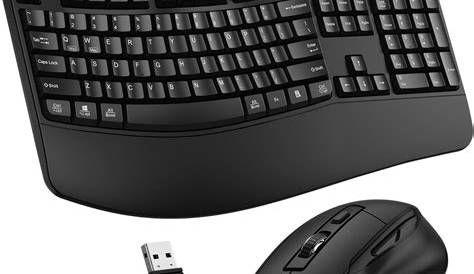
If you're experiencing connectivity issues with your wireless mouse and keyboard, there are several steps you can take to troubleshoot and resolve the problem. Common symptoms include unresponsive devices, erratic cursor movement, and frequent disconnections. This guide will help you identify the issue and restore functionality to your devices.
What are the signs of peripheral issues?
Common symptoms of peripheral issues include unresponsive devices, erratic cursor movement, delayed input, and frequent disconnections. You might notice that your mouse stops working or your keyboard inputs are missed intermittently. These symptoms can occur randomly or after periods of inactivity, making it difficult to pinpoint the exact cause.
Symptom
Unresponsive devices
Erratic cursor movement
Delayed input
Frequent disconnections
How to identify the type of peripheral issue you have?
Before diving into troubleshooting, determine whether the issue lies with the device itself, the connection, or your computer. Start by checking if the devices are powered on and if the batteries are functioning. If they are wireless, ensure that the receiver is properly connected to your computer. For wired devices, inspect the cables for any visible damage. If possible, test the devices on another computer to see if they work there.
Step-by-step fixes for wireless and wired devices
For Wireless Devices:
- Check the batteries. - Replace the batteries if they are low.
- Re-establish the connection. - Turn off the devices, then turn them back on.
- Reconnect the USB receiver. - Unplug the wireless receiver from the USB port and plug it back in.
- Update drivers. - Open Device Manager, locate your mouse and keyboard under "Mice and other pointing devices" and "Keyboards" respectively, right-click each, and select "Update driver." ``
powershell title="PowerShell (run as Administrator)" Get-PnpDevice | Where-Object { $_.FriendlyName -like 'mouse' -or $_.FriendlyName -like 'keyboard' } | ForEach-Object { Update-PnpDevice -InstanceId $_.InstanceId }`` - If drivers are already updated, it may indicate a hardware issue.
For Wired Devices:
- Check connections. - Ensure the device is securely plugged into the USB port.
- Try different USB ports. - Switch to another port to rule out a faulty connection.
- Restart your computer. - Sometimes a simple restart can resolve the issue.
How to confirm your peripheral is working again?
After following the troubleshooting steps, test your devices to verify functionality. Move the mouse and check for responsiveness or type on the keyboard to see if inputs are registered correctly. If the devices are working, you should see immediate responses on the screen. If issues persist, it may indicate a deeper hardware or software problem.
Tips to prevent future peripheral issues
To avoid similar problems in the future, consider the following:
- Regularly check and replace batteries in wireless devices to prevent connectivity drops.
- Keep your peripheral drivers updated to avoid compatibility issues.
- Avoid using wireless devices too far from their USB receiver to ensure a strong connection.
- Clean the USB ports and the devices themselves periodically to remove dust and debris that can cause connectivity problems.
Conclusion
If your peripheral issues continue after these steps, consider replacement or professional help. Regular maintenance and updates can help prevent many common problems. Stay proactive to keep your workspace running smoothly.
Frequently Asked Questions
What should I do if my wireless mouse and keyboard are both unresponsive?
First, check the batteries and replace them if needed. Next, ensure the USB receiver is securely connected. If that doesn't work, try connecting the devices to another computer to see if they function there.
How can I update my device drivers?
You can update drivers through Device Manager by right-clicking your mouse or keyboard under "Mice and other pointing devices" or "Keyboards" and selecting "Update driver."