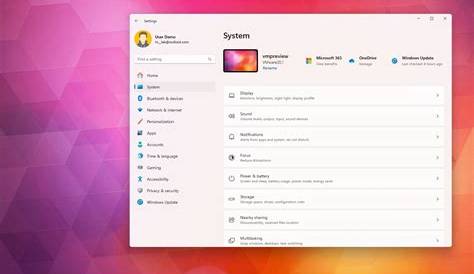
Windows 11 is designed with robust security features to protect your device and personal data. Understanding these built-in tools and hardware requirements will help you feel more secure while using your new operating system.
What security features does Windows 11 offer?
Windows 11 includes several built-in security features that work together to protect your system. One of the most notable is Windows Defender, a comprehensive antivirus solution that automatically scans for threats and provides real-time protection against malware and other malicious software. This tool continuously updates to recognize new threats, ensuring that your system remains secure.
Another key feature is BitLocker, which encrypts your hard drive to prevent unauthorized access to your data. If your device is lost or stolen, BitLocker ensures that your information remains inaccessible without the correct password or recovery key.
Secure Boot is also a crucial element of Windows 11's security framework. It helps ensure that your PC boots using only software trusted by the PC manufacturer, preventing malware from loading during the startup process.
Windows 11 also incorporates Windows Hello, which enables you to log in using facial recognition or a fingerprint, adding an extra layer of security to your device.
How does Windows 11 improve user privacy?
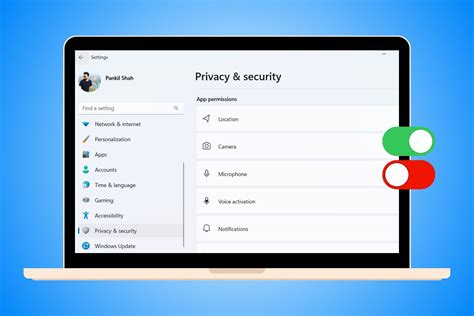
Windows 11 takes user privacy seriously by providing enhanced privacy settings that allow you to manage your data effectively. For example, you can control which apps have access to your location, camera, and microphone. This granular control allows you to limit access to sensitive information to only those applications you trust.
If you want to prevent certain apps from tracking your location, you can go to Settings > Privacy & security > Location and turn off location access for specific apps or even entirely. Additionally, Windows 11 includes a Privacy Dashboard that summarizes your data usage and permissions, making it easier for you to manage your privacy settings. Unlike previous versions, it offers clearer insights into how your data is being used and shared.
What are the hardware requirements for enhanced security?
Windows 11 has specific hardware requirements that significantly enhance its security features. One of the most crucial components is TPM 2.0 (Trusted Platform Module), which provides hardware-based security functions. TPM 2.0 helps protect your encryption keys and ensures that your device boots securely.
Secure Boot, another requirement, works in conjunction with TPM 2.0 to verify that your system starts with trusted software. This means that if malware tries to load during startup, Secure Boot will prevent it from doing so. However, not all older devices meet these requirements, which is why you may need newer hardware to take full advantage of Windows 11's security enhancements.
What misconceptions exist about Windows 11 security?
There are a few common misconceptions about Windows 11 security that can lead to misunderstandings. One myth is that Windows 11 is inherently less secure than other operating systems. In reality, it builds on the security measures from previous versions while adding new features like TPM 2.0 and enhanced privacy controls.
Another misconception is that using third-party antivirus software is unnecessary with Windows Defender. While Windows Defender is effective, some users may prefer additional layers of security offered by third-party solutions. Ultimately, the choice depends on your specific needs and comfort level with security.
How can users optimize their security settings?
To ensure your device is as secure as possible, follow these practical steps to optimize your security settings:
- Open Settings from the Start menu.
- Click on Privacy & security.
- Select Windows Security and then click on Virus & threat protection. Ensure that real-time protection is turned on.
- Go back to Privacy & security, and review each section to adjust app permissions based on your comfort level.
- Enable BitLocker if your device supports it by navigating to Device encryption and turning it on.
- Regularly check for Windows updates under Windows Update to ensure you have the latest security patches.
Conclusion
Familiarizing yourself with the security features of Windows 11 can significantly enhance your confidence in using your device. Take the time to explore the settings and make adjustments based on your needs. This proactive approach will help keep your information safe and secure.
Frequently Asked Questions
Is Windows Defender enough for my security needs?
For many users, Windows Defender provides adequate protection. However, if you frequently download files from the internet or use your device for sensitive activities, you might consider additional security software.
Can I disable TPM 2.0 for compatibility reasons?
Disabling TPM 2.0 is not recommended as it is integral to Windows 11's security features. If your device doesn't support it, you may need to consider hardware upgrades.
Will Windows 11 automatically update security features?
Yes, Windows 11 automatically receives updates, including security features, to ensure your device remains protected against new threats.