Frequent internet disconnections during video calls can be caused by various network issues, but there are effective ways to troubleshoot them. This guide will help you identify symptoms, understand potential causes, and provide step-by-step solutions to restore your connection.
What are the signs that my network is down?
Common symptoms of network issues include slow internet speeds, unexpected disconnections, and error messages. You might notice that your video call freezes or that you can’t load webpages. Here are some specific signs:
- Websites take a long time to load.
- You see buffering during video playback.
- You get error messages like "No Internet Connection" or "Network Unreachable."
- Your video calls drop unexpectedly or have poor audio/video quality.
If you encounter any of these symptoms, your network may be experiencing problems.
Why is my network experiencing issues?
There are several probable causes for your network problems:
- Hardware Failures: Your modem or router may be malfunctioning.
- ISP Outages: Sometimes, the issue lies with your Internet Service Provider. Check their website or social media for outage reports.
- Configuration Errors: Incorrect settings on your router can disrupt your connection.
- Interference: Devices like microwaves, cordless phones, or neighboring Wi-Fi networks can interfere with your signal.
Before you start
This guide applies to most home networking equipment and requires administrator privileges on your devices. Ensure your equipment is plugged in and powered on before proceeding.
How can I fix my network connection?
Follow these steps to troubleshoot your network:
- Reboot your modem and router. Turn them off, wait for about 30 seconds, and then turn them back on.
- Check all cables. Ensure that the power cables and Ethernet cables are securely connected.
- Connect directly to your modem. Use an Ethernet cable to connect your computer directly to the modem, bypassing the router. This helps determine if the router is the issue.
- Reset your router to factory settings. If issues persist, locate the reset button on your router (usually a small pinhole) and press it. This will erase all your settings. ``
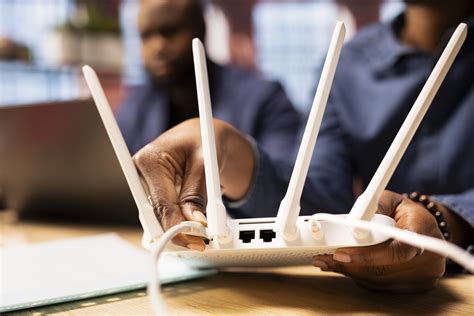
text Settings path: Look for the reset button on the back of your router.`` > Warning: This will erase your custom settings, and you’ll need to set up your network again. - Update your router firmware. Access your router’s settings via a web browser and check for firmware updates. Follow the manufacturer's instructions to update.
How do I verify if my network is restored?
To confirm that your network issues are resolved, you can perform the following:
- Check your internet connection. Open a web browser and try loading a webpage.
- Use the ping command. Open Command Prompt or Terminal and type: ```cmd
echo 8.8.8.8 -n 4
   You should see replies indicating successful connectivity.

3. **Run a speed test.** Visit a speed test website to check your current internet speed. This should match your expected speed from your ISP.
What can I do to prevent future issues?
To maintain a stable network, consider these practices:
- Regularly update your router's firmware. Check for updates every few months.
- Keep your equipment clean and dust-free. Dust can cause overheating.
- Change your Wi-Fi password periodically. This helps secure your network from unauthorized users.
- Monitor your connected devices. Limit the number of devices sharing your bandwidth to ensure better performance.
Conclusion
If you continue to experience issues after following these steps, it may be time to contact your ISP for further assistance. They can help diagnose problems that might be beyond your control. Regular maintenance can also keep your network running smoothly.