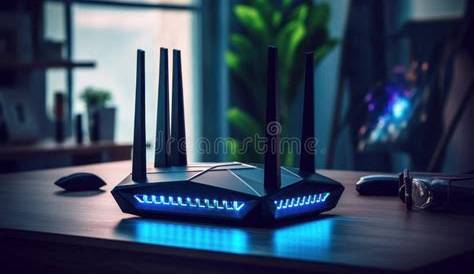
If your Wi-Fi keeps dropping during important video calls, you may be dealing with interference, router issues, or device settings. To resolve this, start by checking the hardware, ensuring proper connections, and rebooting your devices. If problems persist, follow the troubleshooting steps outlined below to restore your connection.
What could be causing my Wi-Fi connection issues?
Common reasons for Wi-Fi connection issues include interference from electronic devices, problems with your router, or incorrect device settings. For instance, if your router is near a microwave or cordless phone, the signal may weaken. An outdated router or firmware can also lead to connectivity problems, as can using the wrong Wi-Fi channel or network mode.
Before you start
This guide applies to most home routers and devices running various operating systems, including Windows, macOS, and Linux. You’ll need Administrator privileges to access router settings. Ensure your device is not in Airplane Mode and is connected to the correct network before proceeding.
How do I start troubleshooting my Wi-Fi connection?
Begin by checking that your hardware is functioning correctly. Look at the lights on your router; they should indicate power, internet access, and Wi-Fi status. Make sure your device is connected to the correct network and that Airplane Mode is off. If everything appears fine, restart your router and your device to refresh the connection.
What are effective fixes for Wi-Fi connectivity?
- Reboot your router. This often resolves temporary glitches.
Power off your router, wait 30 seconds, then power it back on.- Check all cables and connections.
Make sure the power cable is securely connected, and check the Ethernet cables if applicable.
- Adjust your Wi-Fi settings.
Log into your router's settings and change the Wi-Fi channel. Often, channels 1, 6, or 11 work best.
Settings path: Router Admin Panel > Wireless Settings > Channel- Update your router's firmware.
Check for updates in the router's admin panel. Outdated firmware can lead to connectivity issues.
Settings path: Router Admin Panel > Firmware Update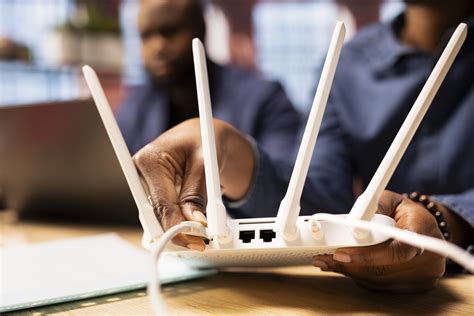
How can I verify that my Wi-Fi is working again?
After making adjustments, confirm your connection by checking the Wi-Fi icon on your device. Run a speed test using an online service. If your speeds match what your internet plan provides, the issue is likely resolved. If not, additional troubleshooting may be needed.
What can I do to prevent future Wi-Fi problems?
To avoid future Wi-Fi issues, regularly update your router's firmware and keep it in a central location, away from potential sources of interference. Consider upgrading your router if it's several years old or if you frequently experience connection drops. Additionally, periodically check your device settings for any changes that may impact connectivity.
Conclusion
If you've followed these steps and your Wi-Fi is still problematic, it may be time to contact your internet service provider for further assistance. Maintaining an updated and well-placed router can significantly enhance your connectivity experience.