To keep your Windows 11 system secure and performing optimally, it’s essential to stay updated. This guide provides clear steps to check your current version, manually apply updates, troubleshoot any issues, and verify the updates’ success. Follow these instructions to ensure your system is up-to-date without unnecessary hassle.
How do I check my current Windows version? [prerequisites]
To find out which version of Windows 11 you are using, you need to access the settings. Here’s what you need:
- A Windows 11 device
- Administrative access to the system
- Click on the Start button or press the Windows key on your keyboard.
- Select Settings (the gear icon).
- In the Settings window, click on System.
- On the left panel, select About.
- Under the Windows specifications section, you will see your version and build number listed.
This information will help you determine if an update is necessary.
What are the steps to update Windows 11? [steps]
Updating Windows 11 is straightforward. Follow these steps to manually check for and apply updates:
- Click on the Start button or press the Windows key.
- Select Settings (the gear icon).
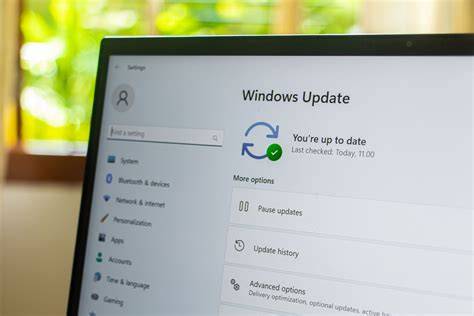
- In the Settings window, click on Windows Update on the left panel.
- Click on Check for updates. ``
text Expected output: Windows will check for available updates and display them if found.`` - If updates are available, click on Download now or Install now as required.
- Follow any on-screen instructions to complete the installation.
- Restart your computer if prompted to finish the update process.
This ensures you have the latest features and security improvements.
What if the update fails to install? [fix]
Sometimes updates may fail to install due to various reasons. Here are common issues and how to troubleshoot them:
- Insufficient Disk Space: Ensure you have enough space on your hard drive by checking your storage settings.
- Internet Connection Issues: Confirm your device is connected to the internet.
- Corrupted Updates: If you see an error code, note it down as you may need to search for that specific error for tailored solutions.
To resolve these issues:
- Free up disk space if needed.
- Restart your router to refresh your connection.
- Run the Windows Update Troubleshooter: - Go to Settings > System > Troubleshoot > Other troubleshooters. - Find Windows Update and click Run.
How can I verify that the update was successful? [verify]
After completing the update process, it’s important to verify its success. Here’s how:
- Follow the same steps in the first section to check your current Windows version.
- Compare the version number you see with the latest version available on the Microsoft website.
- If the version matches, your update was successful. You can also look for new features or improvements based on the update notes available online.
What should I do if I encounter errors during the update? [faq]
If you face errors during the update, consider these steps:
- Error Codes: Look up any error codes you receive to find specific solutions.
- Reboot Your Device: A simple restart can sometimes resolve the issue.
- Temporarily Disable Antivirus Software: Occasionally, antivirus programs can interfere with updates. Disable it briefly and try updating again.
- Use System Restore: If all else fails, consider reverting to a previous system restore point if available.
Conclusion
By following these steps, you can ensure your Windows 11 system is up-to-date, which is vital for security and performance. Make it a habit to check for updates regularly, and troubleshoot any issues you encounter promptly.