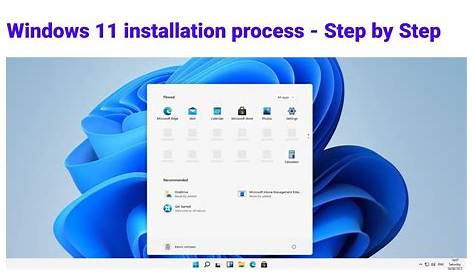
Upgrading from Windows 10 to Windows 11 is straightforward if you follow the right steps. First, ensure your device meets the system requirements for Windows 11. Once you've confirmed this, you can smoothly transition to the new operating system with the following guide.
Prerequisites
Before starting the upgrade, make sure you have the following:
- A compatible PC that meets the system requirements for Windows 11.
- A valid Windows 10 license.
- A backup of important files, just in case.
- An internet connection for downloading updates.
Step-by-step upgrade process
Follow these steps to upgrade from Windows 10 to Windows 11:
- Check for compatibility. Use the PC Health Check tool to verify your device meets the requirements for Windows 11.
- Backup your data. Create a backup of all important files to avoid any potential loss.
- Open Windows Update. Click on Start, then go to Settings.
- Navigate to Update & Security. Select 'Windows Update' from the menu.
- Check for updates. Click on 'Check for updates' to see if Windows 11 is available for your device.
- Download Windows 11. If the upgrade is available, click 'Download and install'.
- Follow on-screen instructions. Complete the installation by following the prompts provided.
Ensure your data is backed up before proceeding, as there is a risk of data loss during the upgrade process.
How can I verify a successful upgrade?
After the upgrade process is complete, check if Windows 11 is installed correctly:
- Open Settings. Click on Start, then Settings.
- Go to System. Click on 'About' on the left.
- Check the Windows specifications. You should see that you are running Windows 11, along with the version and build number. If everything appears as expected, the upgrade was successful.
What should I do if something goes wrong?
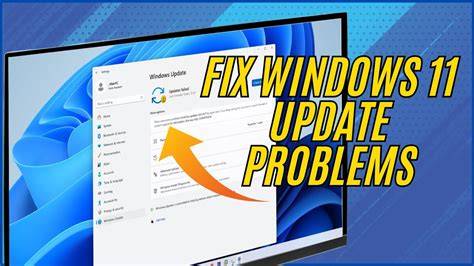
If the upgrade fails or your system behaves unexpectedly afterward, try these troubleshooting steps:
- Restart your PC. A simple restart can resolve minor issues.
- Check for updates. Go to Settings > Update & Security > Windows Update to see if there are pending updates.
- Run the Windows Update Troubleshooter. Go to Settings > Update & Security > Troubleshoot > Additional troubleshooters, and select Windows Update.
- Rollback if necessary. If you experience major issues, consider rolling back to Windows 10 by going to Settings > Update & Security > Recovery and selecting 'Go back to the previous version of Windows 10.' This option is available for a limited time after the upgrade.
Conclusion
After upgrading, take some time to explore the new features and settings in Windows 11. If you encounter any issues, refer back to the troubleshooting steps provided. Enjoy your upgraded experience!
Frequently Asked Questions
Can I upgrade to Windows 11 for free?
Yes, if your device meets the system requirements and you have a valid Windows 10 license, the upgrade is free.
What if my PC doesn't meet the requirements for Windows 11?
If your PC doesn't meet the requirements, you won't be able to upgrade. You may consider upgrading your hardware or continuing to use Windows 10.
How long does the upgrade process take?
The upgrade process can take anywhere from 20 minutes to a couple of hours, depending on your system speed and the update size.
Will my apps and files be safe after the upgrade?
Generally, your files and apps should remain intact after the upgrade. However, it's always best to back up important data beforehand.