If you've just installed a Windows 11 cumulative update and are facing problems, such as crashes or slow performance, there are effective troubleshooting steps you can take. Many users encounter issues after these updates, but you can resolve them by following the right procedures. This guide will help you identify common problems, verify the update installation, and troubleshoot any issues that arise.
What problems can arise after a cumulative update?
Common problems you might encounter after a cumulative update include:
- Unexpected system crashes.
- Sluggish computer performance.
- Certain features not functioning as expected.
For instance, applications may crash unexpectedly, the Start menu might become unresponsive, or devices like printers and external drives may lose their connection or functionality.
How to check if the cumulative update was successful?
To verify whether the cumulative update installed successfully, follow these steps:
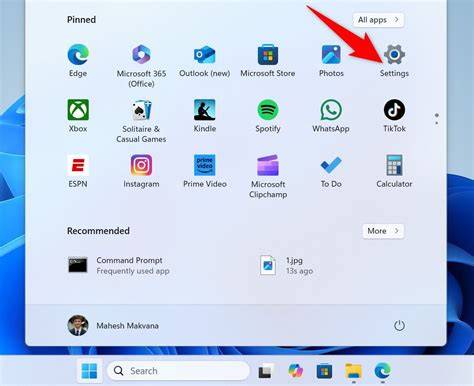
- Open Settings by pressing
Windows + I. - Navigate to Windows Update.
- Click on Update history to view recent updates.
- Look for the cumulative update entry and check its status. If it shows "Successfully installed," the update went through without issues. If there are error messages, note them, as they could indicate a problem with the installation.
Before you start
This guide applies to Windows 11 and requires Administrator privileges. It's a good idea to back up your important data before proceeding. Additionally, ensure your system is connected to the internet for troubleshooting steps that require updates.
Steps to troubleshoot common issues from the update
If you're facing issues after the update, follow these troubleshooting steps:
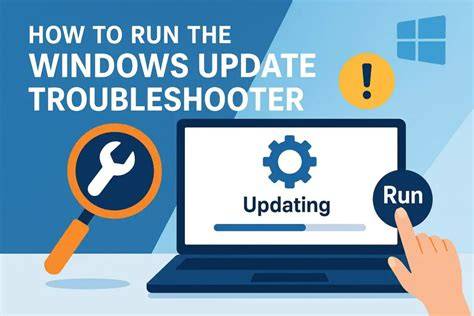
- Run the Windows Update Troubleshooter: - Open Settings. - Navigate to System > Troubleshoot > Other troubleshooters. - Click on Run next to Windows Update. - Follow the prompts to detect and fix issues.
- Check Device Drivers: - Open Device Manager by right-clicking the Start button and selecting it. - Look for any devices with a yellow exclamation mark. - Right-click the device and select Update driver. - Choose Search automatically for updated driver software.
- Rollback the Update (if necessary): - Open Settings > Windows Update > Update history. - Click on Uninstall updates at the top. - Select the cumulative update and click Uninstall. This will revert to the previous version.
Rolling back an update may lead to the loss of new features or improvements.
How to ensure your system is stable after fixing the issues
After troubleshooting, it's important to ensure your system is stable. Here are some steps to do this:
- Run the System File Checker: - Open Command Prompt as Administrator. - Type the following command and press Enter: ``
cmd title="Command Prompt" sfc /scannow`` - Wait for the scan to complete. If it finds issues, it will attempt to fix them automatically. - Check for Additional Updates: - Return to Settings > Windows Update. - Click Check for updates to ensure you have the latest patches and fixes.
- Monitor System Performance: Keep an eye on system performance over a few days. If you notice recurring issues, further investigation may be necessary.
What to do if problems persist?
If you continue to experience issues after trying the above steps, consider these options:
- Seek Help from Microsoft Support: They can provide assistance tailored to your specific problem.
- Visit Community Forums: Many users share their experiences and solutions, which can provide insights.
- Consider a System Restore: If all else fails, restoring your system to a previous point before the update may resolve persistent problems.
Conclusion
After troubleshooting, ensure your system is running smoothly by checking for additional updates and monitoring its performance. If issues persist, don't hesitate to reach out to support or community resources for further assistance.