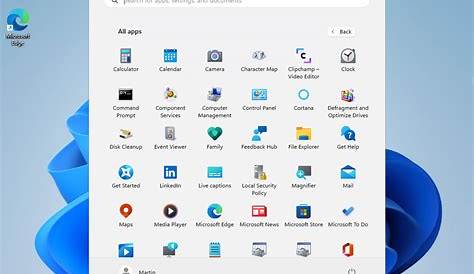
If you’re a new Windows 11 user feeling overwhelmed, rest assured that you’re not alone. Many users find the features and settings daunting at first. Fortunately, there are numerous guides and tutorials designed to help you set up and navigate Windows 11 with ease.
Setting Up Windows 11: Your First Steps
Getting started with Windows 11 involves several key steps to configure the system to your preferences. First, after the installation, go through the setup process to configure your network and privacy settings.
- When prompted, connect to your Wi-Fi or Ethernet network.
- Follow the on-screen instructions to sign in with your Microsoft account or create a local account.
- Adjust your privacy settings by selecting which data you want to share with Microsoft.
- Once on the desktop, check for updates by going to Settings > Windows Update and clicking Check for updates.
- Finally, personalize your desktop background and themes by navigating to Settings > Personalization.
Mastering File Management in Windows 11
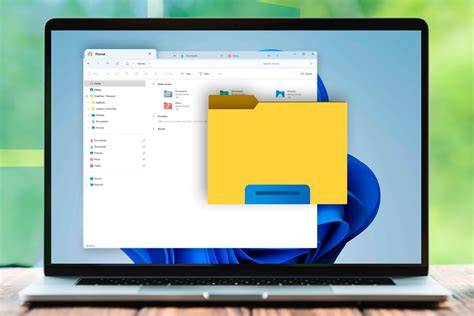
File management is crucial for keeping your documents organized. Windows 11 features a user-friendly File Explorer, which simplifies file management.
- Open File Explorer by clicking the folder icon on the taskbar or pressing
Windows + E. - Create a new folder by clicking New in the command bar or right-clicking in the desired directory and selecting New > Folder.
- To move files, click and drag them to your new folder or right-click, select Cut, navigate to the folder, and then right-click and choose Paste.
- To share files, right-click the file, select Share, then choose your preferred method (email, nearby sharing, etc.).
- Set up backup options by going to Settings > Update & Security > Backup.
Customizing Your Windows 11 Interface
Personalizing your Windows 11 interface can enhance your experience. You can adjust several elements to suit your style.
- Change the Start menu layout by right-clicking on an app and selecting Pin to Start or Unpin from Start.
- To modify the taskbar, right-click on an empty area of the taskbar and choose Taskbar settings to select which icons to display.
- Adjust your desktop background by right-clicking on the desktop, selecting Personalize, and choosing a background from the available options.
- You can also change the color scheme by going to Settings > Personalization > Colors and selecting your preferred color theme.
Troubleshooting Common Windows 11 Problems
Even with a smooth setup, you might encounter issues. Here are some common problems and their solutions.
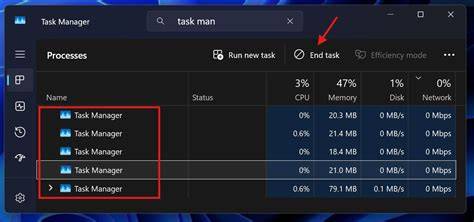
- For slow performance, check your startup programs by right-clicking the taskbar and selecting Task Manager. Disable unnecessary applications under the Startup tab.
- If apps crash frequently, ensure they are updated by going to the Microsoft Store, clicking Library, and selecting Get updates.
- For update failures, go to Settings > Windows Update, and click Troubleshoot to run the update troubleshooter.
- If you experience connectivity issues, try resetting your network settings by going to Settings > Network & Internet > Status, then click on Network reset.
Finding More Resources and Support
If you need additional help, there are plenty of resources available.
- Visit the official Microsoft support website for detailed articles and troubleshooting steps.
- Join community forums like Microsoft Community or Reddit's r/windows for peer support.
- Watch tutorial videos on platforms like YouTube for visual guidance on specific topics.
Conclusion
Now that you have a variety of resources at your fingertips, take some time to explore and customize your Windows 11 experience. With these guides, navigating the system becomes much easier.
Frequently Asked Questions
Where can I find official Microsoft support for Windows 11?
You can find official Microsoft support by visiting the Microsoft Support website, where you'll find articles and troubleshooting guides.
How can I customize the Start menu in Windows 11?
You can customize the Start menu by right-clicking on apps to pin or unpin them, and by accessing taskbar settings to adjust which icons appear.
What should I do if my Windows 11 updates fail?
If updates fail, go to **Settings > Windows Update** and use the troubleshooter to identify and fix the issue.
Are there video tutorials available for Windows 11?
Yes, YouTube has numerous video tutorials that cover everything from setup to troubleshooting.