If you're preparing to upgrade your PC to Windows 11, downloading the 64-bit ISO file is essential for a clean installation. This guide provides the official download link, step-by-step instructions for obtaining the ISO file, and the process for creating a bootable USB drive. By following these steps, you’ll be ready for your Windows 11 upgrade.
Where can I find the official download link?
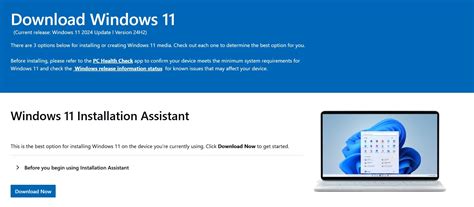
To download the Windows 11 ISO file safely, visit the official Microsoft website. This ensures you're getting a legitimate copy without the risks associated with third-party sources. Head to the Microsoft Windows 11 download page to find options for downloading the ISO file directly.
How to download the ISO file step-by-step
Prerequisites
- A stable internet connection.
- Sufficient disk space to store the ISO file.
- A compatible browser (Chrome, Edge, etc.).
- On the Microsoft Windows 11 download page, scroll down to find the section titled 'Download Windows 11 Disk Image (ISO)'.
- Select 'Windows 11' from the dropdown menu under 'Select edition'.
Windows 11- Click 'Confirm' to proceed.
- Choose your preferred language from the dropdown list and click 'Confirm' again.
English (United States)- Finally, select the 64-bit download option to start the download of the ISO file.
Ensure your internet connection is stable, as the file size can be substantial.
How to create a bootable USB drive from the ISO
Creating a bootable USB drive is straightforward with a tool like Rufus. Here’s how:
- Download and install Rufus from its official website.
- Insert a USB drive (at least 8 GB) into your computer.
- Open Rufus. In the 'Device' dropdown, select your USB drive.
- Under 'Boot selection', click 'SELECT' and choose the Windows 11 ISO file you just downloaded.
- Leave the default partition scheme (usually GPT) and filesystem (NTFS) settings.
- Click 'START' to begin the process. You may receive a warning that all data on the USB drive will be destroyed.
- Wait for Rufus to complete the process. Once done, you'll have a bootable USB drive ready for installation.
What to do if the download fails
If your download fails, consider these common issues:
- Internet connection problems: Check your connection and try restarting your router.
- Browser issues: Sometimes, changing browsers can help. Chrome or Edge are usually reliable.
- Insufficient disk space: Ensure you have enough space on your hard drive to accommodate the ISO file.
If problems persist, try downloading during off-peak hours or using a different device.
Can I use this ISO for multiple installations?
Yes, you can use the Windows 11 ISO file for multiple installations, provided you have valid licenses for each installation. The ISO file allows you to create multiple bootable USB drives or install on different machines. Just remember that each installation will require a valid product key to activate Windows 11.
Conclusion
Now that you have the ISO file and a bootable USB drive, you're ready to install Windows 11 on your PC. Follow the on-screen instructions during installation, and make sure to back up any important data beforehand. Enjoy your upgraded experience with Windows 11!
Frequently Asked Questions
What are the system requirements for Windows 11?
Windows 11 requires a compatible 64-bit processor, 4 GB of RAM, and 64 GB of storage, among other requirements like TPM 2.0.
Can I upgrade to Windows 11 without losing my files?
Yes, if you choose the upgrade option during installation, you can keep your files and apps intact.
Is there a way to check if my PC is compatible with Windows 11?
Yes, you can use the PC Health Check app provided by Microsoft to assess compatibility.