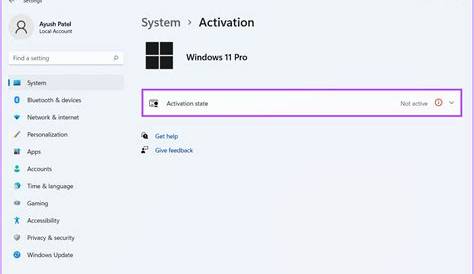
If your Windows 11 isn’t activating, it means your copy hasn't been verified as genuine. This can cause various limitations, such as restricted features and persistent reminders to activate. Fortunately, you can follow specific steps to troubleshoot and resolve these activation issues.
What does it mean when Windows 11 is not activated?
When Windows 11 is not activated, it means your copy of the operating system hasn't been verified as genuine. This leads to limitations such as the inability to customize your desktop background, access certain updates, or receive security patches. Additionally, using an unactivated version may result in constant reminders to activate, negatively impacting your experience.
Why is my Windows 11 not activating?
There are several common reasons why your Windows 11 might not activate:
- Hardware Changes: If you've recently changed hardware, like replacing your motherboard, Windows may not recognize your system as the same device.
- Issues with Your Microsoft Account: Sometimes, the account you use to activate Windows may have issues, including being linked to a different device.
- Internet Connectivity Problems: A stable internet connection is required for activation. If your connection is unstable or unavailable, activation may fail.
- Expired License: If you are using a temporary license, it may have expired, preventing activation.
- Corrupted System Files: Issues with system files can also prevent activation.
How can I fix Windows 11 activation issues?
Here’s a step-by-step guide to troubleshoot your activation issues:
- Check Your Internet Connection. Ensure you are connected to the internet.
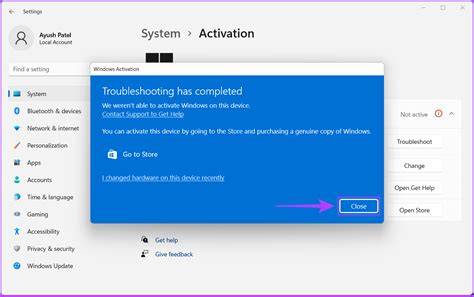
- Run the Activation Troubleshooter: - Open Settings. - Go to Update & Security > Activation. - Click on Troubleshoot.
- Re-enter Your Product Key: - Open Command Prompt as Administrator. - Type the following command: ``
cmd title="Command Prompt" slmgr.vbs /ipk YOUR-PRODUCT-KEY`` - Contact Microsoft Support: If activation still fails, contact Microsoft support for assistance.
How to verify my Windows 11 activation status?
You can check your Windows 11 activation status in a few simple steps:
- Open Settings.
- Navigate to Update & Security > Activation.
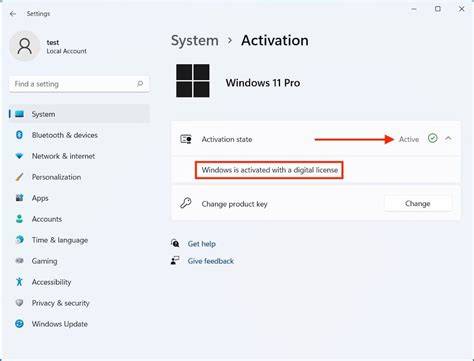
- Look for the activation status message. You should see either 'Windows is activated' or a message indicating it is not.
If your Windows is activated, you should also see the edition of Windows you are using, such as Windows 11 Pro.
What if nothing works?
If the above steps do not resolve your activation issues, consider these options:
- Contact Microsoft Support: They can provide specific guidance based on your situation.
- Reinstall Windows 11: As a last resort, you may need to reinstall Windows. Make sure to back up your data first to avoid loss.
Reinstalling should only be done as a last resort after trying all other options.
Conclusion
If your Windows 11 is not activated, following these steps can help you troubleshoot and resolve the issue. If you're still having trouble, reaching out to Microsoft support or considering a reinstallation may be necessary. Don't forget to back up any important data before taking more drastic measures.