Windows 11 privacy settings allow you to control how your personal data is collected and used by the operating system and applications. Managing these settings is essential for safeguarding your data from unauthorized access and ensuring your privacy is respected.
What are Windows 11 privacy settings?
Windows 11 privacy settings include various configurations that dictate how your information is handled by the system and applications. These settings are crucial because they help protect your personal data from unauthorized access and misuse. For example, by adjusting location settings, you can prevent apps from tracking your whereabouts, which reduces the risk of exposing sensitive information. Understanding these settings can empower you to make informed choices about your privacy.
How to access privacy settings in Windows 11
To access your privacy settings in Windows 11, follow these steps:
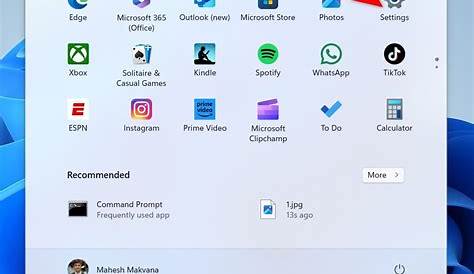
- Click on the Start button (Windows icon) on the taskbar.
- Select Settings (the gear icon).
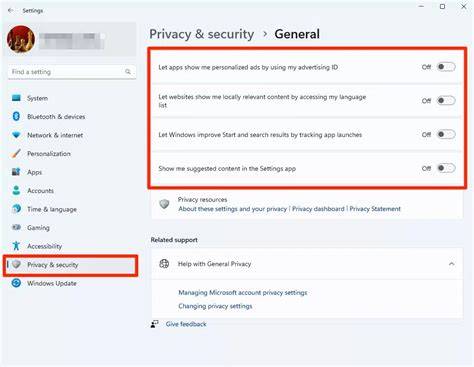
- In the Settings window, click on Privacy & security from the sidebar.
- Here, you will find various privacy options to adjust, such as Windows permissions, App permissions, and Diagnostics & feedback.
By navigating through these options, you can easily locate and modify the settings that matter to you.
Key privacy settings to adjust
Several critical privacy settings in Windows 11 can enhance your data protection. Here are key settings you should consider adjusting:
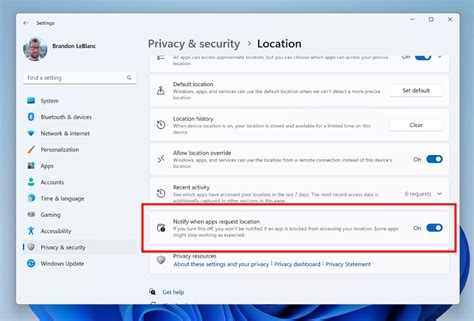
- Location: Control which apps can access your location. If you don’t use location-based services, you can turn this off.
- Camera and Microphone: Decide which applications can use your camera and microphone. Turn off access for apps that don’t need these features.
- Advertising ID: Disable the advertising ID to limit personalized ads based on your usage. This option can be found under Privacy & security > General.
- Activity History: Manage your activity history settings to prevent Windows from logging your activities across devices. Adjusting these settings can help further protect your privacy.
Misconceptions about Windows 11 privacy
There are several misconceptions regarding Windows 11 privacy settings that can lead to confusion:
- All settings are automatically secure: Many users believe that Windows 11 automatically protects their privacy. However, you must actively configure settings to suit your needs.
- Privacy settings are too complicated to manage: Some think that adjusting privacy settings is overly complex. In reality, the interface is user-friendly, and most settings can be easily modified through the Settings menu.
Best practices for maintaining privacy on Windows 11
To maintain strong privacy on Windows 11, consider these best practices:
- Regularly review your privacy settings to adjust permissions as your needs change.
- Keep your system updated to ensure you have the latest security features.
- Be cautious about the apps you install, as some may require excessive permissions.
- Use a local account instead of a Microsoft account if you want to limit data sharing.
Conclusion
To effectively protect your data in Windows 11, familiarize yourself with the privacy settings and make the necessary adjustments. Regularly reviewing these settings will keep you informed about how your data is being used, enhancing your overall security.
Frequently Asked Questions
How do I reset my privacy settings in Windows 11?
You can reset your privacy settings by going to **Settings > Privacy & security**, and manually adjusting each setting back to its default state.
Can I turn off all tracking in Windows 11?
Yes, you can disable most tracking features in Windows 11 by adjusting settings under **Privacy & security**, but some system functionalities may require certain permissions to work.
What happens if I disable location services?
If you disable location services, apps that rely on your location for functionality, like maps or ride-sharing apps, will not be able to access your geographical information.
Are my privacy settings the same on all devices?
No, privacy settings can vary between devices and operating systems, so it’s essential to check and adjust them on each device you use.