Windows 11 is an operating system by Microsoft that requires specific hardware to function properly. If you're considering an upgrade, it's essential to determine whether your current PC meets these minimum system requirements.
What are the minimum requirements for Windows 11?
The minimum system requirements for Windows 11 include a compatible 64-bit processor, 4 GB of RAM, and 64 GB of storage. Your PC must also support DirectX 12 compatible graphics with a WDDM 2.0 driver, have a display larger than 9 inches with HD resolution (720p), and provide a reliable internet connection for updates and features. A key requirement is the presence of TPM version 2.0 and Secure Boot capability, which enhance security by ensuring that the PC only boots with trusted software from the manufacturer. For example, if you have a processor from Intel's 8th generation or later, it typically meets this requirement. Additionally, you should ensure that your firmware is UEFI-based as Legacy BIOS is not supported.
How can I check if my PC meets Windows 11 requirements?
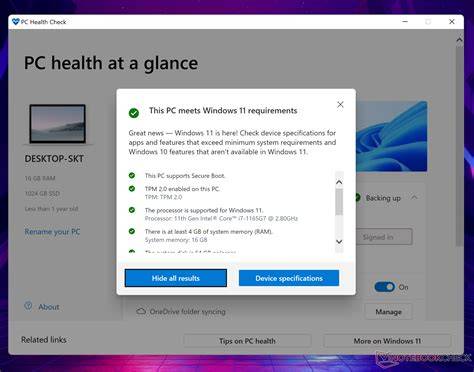
To check if your PC is compatible with Windows 11, follow these steps:
- Open the Start menu and type
PC Health Check, then press Enter. - If you don't have it installed, download it from the Microsoft website and install it.
- Launch the PC Health Check app.
- Click on the 'Check now' button to see if your PC meets the requirements for Windows 11.
- Review the results provided by the app to identify any compatibility issues.
Alternatively, you can check system specifications manually:
- Press
Windows + Rto open the Run dialog. - Type
msinfo32and press Enter to open System Information. - Review the details for your processor, RAM, and TPM version.
- Ensure your firmware is UEFI and not Legacy BIOS.
What if my PC doesn't meet the requirements?
If your PC doesn't meet the minimum requirements for Windows 11, especially concerning TPM and Secure Boot, you have a few options to consider.
First, check if your motherboard supports TPM and if there is a setting in the BIOS to enable it. If TPM is not available, you may need to upgrade your hardware.
Secure Boot may be disabled in your BIOS settings as well. You can enable it there, but this may depend on your specific hardware compatibility.
If upgrading hardware isn't feasible, you can continue using Windows 10, which will receive support until October 14, 2025. Some users have found ways to bypass certain requirements using unofficial methods, but this is not recommended due to potential security risks and system instability.
What are the benefits of upgrading to Windows 11?
Upgrading to Windows 11 provides several advantages that can enhance your computing experience. You can expect a fresh user interface with a centered Start menu and a redesigned taskbar, which many users find more appealing and intuitive. Windows 11 also optimizes performance, offering faster wake-up times from sleep and improved battery life for laptops.
For example, the new Snap Layouts feature allows you to organize open windows into various layouts easily, which improves multitasking. Additionally, Windows 11 integrates Microsoft Teams directly into the taskbar, making communication with friends and colleagues more straightforward. Gaming also sees enhancements with features like DirectStorage, which can significantly reduce load times for games.
Common compatibility issues and how to resolve them
Some common compatibility issues with Windows 11 include lacking TPM 2.0 support, an unsupported processor, or outdated BIOS settings. To resolve these:
- Ensure your processor is from Intel's 8th generation or AMD Ryzen 2000 series or newer.
- Check your BIOS settings to enable TPM and Secure Boot if they are not already activated.
- Update your BIOS to the latest version provided by your motherboard manufacturer, as this can add support for TPM and Secure Boot.
Conclusion
If you're ready to upgrade, start by checking your PC's compatibility using the steps outlined. If your hardware meets the requirements, you can prepare for the installation. If it doesn't, consider your options for upgrading or sticking with your current system until you're ready to make a change.
Frequently Asked Questions
Can I upgrade to Windows 11 for free?
If you have a genuine copy of Windows 10, you can upgrade to Windows 11 for free, provided your hardware meets the requirements.
What happens if I try to install Windows 11 on incompatible hardware?
Installing Windows 11 on incompatible hardware can lead to performance issues and may prevent you from receiving updates or support from Microsoft.
Will my apps work on Windows 11?
Most apps that work on Windows 10 should function correctly on Windows 11, but it's advisable to check for compatibility with specific applications.
Is TPM 2.0 mandatory for Windows 11?
Yes, TPM 2.0 is a mandatory requirement for Windows 11, as it enhances security features.