If you're facing performance issues with your computer, it may be due to hardware failure. To identify potential hardware problems, you should recognize common symptoms, run some initial diagnostics, and perform specific tests on various components. This guide will help you troubleshoot the issue and determine whether it's hardware-related or not.
What are the common signs of hardware failure?
Some signs that suggest potential hardware issues include:
- Strange noises, such as clicking or grinding from your hard drive.
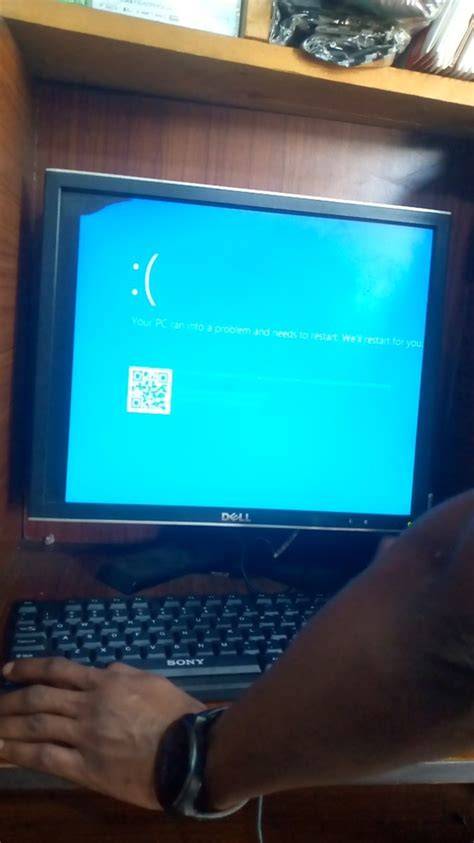
- Frequent crashes or blue screens.
- Overheating.
- Slow performance or applications freezing unexpectedly.
- Failure to boot.
If you notice any of these symptoms, it's important to investigate further.
Before you start
This guide applies to most personal computers running Windows or macOS. You will need administrator privileges to run some diagnostic tools. Before starting, ensure your computer is connected to a stable power source and back up any important data.
How can I perform initial diagnostics?
Follow these steps to conduct basic troubleshooting:
- Reboot your computer. Sometimes, a simple restart can resolve temporary glitches.
- Check all physical connections. Ensure cables are securely plugged in and look for any visible damage.
- Run built-in diagnostic tools. Most operating systems have utilities to help detect hardware issues. For Windows, use the following command:
sfc /scannowThis command checks for system file integrity.
What specific tests should I run for different hardware components?
You can perform several tests to evaluate specific hardware components:
- Hard Drive: Use tools like CrystalDiskInfo or the built-in Windows tool. Right-click the drive in File Explorer, select 'Properties', then 'Tools', and click 'Check'. If errors are found, it may indicate a failing hard drive.
- RAM: Use Windows Memory Diagnostic by typing
mdsched.exein the search box and following the prompts. If errors arise, your RAM may be faulty. - Graphics Card: Use software like FurMark to stress test your GPU. Monitor for artifacts or crashes during the test, which may indicate a problem.
How do I interpret error messages?
Error messages can provide clues about underlying hardware issues. For instance, a blue screen showing a message like "MEMORY_MANAGEMENT" usually indicates RAM issues. An error stating "Disk Read Error" typically points to hard drive problems. Take note of any specific error codes, as these can be helpful for more detailed troubleshooting.
When should I seek professional help?
If you have tried the diagnostics and tests but are still experiencing issues, it may be time to consult a professional. This is especially important if you notice physical damage to components, such as burnt parts or swollen capacitors. If you're uncomfortable performing any hardware repairs or replacements, seeking professional help ensures your safety and proper handling of sensitive components.
Conclusion
After following these steps, you should have a better understanding of whether your issues stem from hardware problems. If you identify potential issues and feel confident in your ability to address them, proceed with repairs or replacements. Otherwise, consider reaching out to a professional for assistance.
Frequently Asked Questions
What should I do if I find an error with my hard drive?
If you find an error with your hard drive, consider backing up your data immediately and running additional diagnostic tools to assess the severity of the issue. If errors persist, you may need to replace the hard drive.
How can I tell if my RAM is faulty?
If you run the Windows Memory Diagnostic and it reports errors, your RAM may be faulty. It's advisable to replace the RAM if you encounter consistent errors during the test.