If you're new to Windows 11, managing the numerous pre-installed applications can feel overwhelming. This guide provides clear steps on how to uninstall applications, manage startup programs for better performance, and reinstall applications when needed, allowing you to customize your system according to your preferences.
How to Uninstall Applications in Windows 11
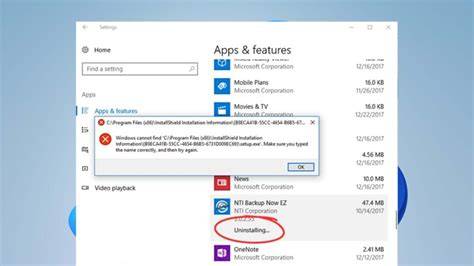
To uninstall applications in Windows 11, you can use either the Settings app or the Start Menu. Here's how to do it step by step.
Prerequisites
- Ensure you have administrator privileges on your device.
- Identify the applications you wish to uninstall.
Using Settings App
- Click the Start button and select Settings.
- In the Settings window, select Apps from the sidebar.
- Click on Apps & features.
- Browse the list or use the search bar to find the app you want to uninstall.
- Click the three dots next to the app name and select Uninstall.
- Confirm the action by clicking Uninstall in the pop-up window.
Using Start Menu
- Click the Start button.
- Find the app you wish to uninstall in the list.
- Right-click the app and select Uninstall from the context menu.
- If prompted, confirm the uninstallation.
Managing Startup Applications
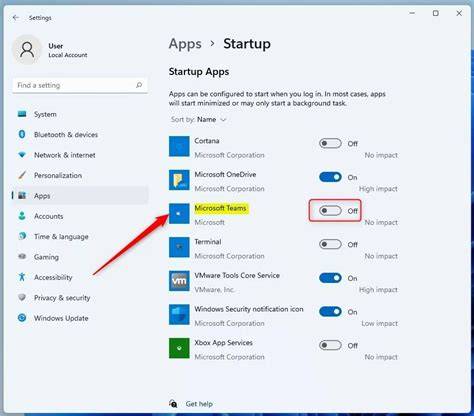
Controlling which applications start automatically can help improve your system's performance. You can manage startup applications through the Task Manager.
- Right-click on the Taskbar and select Task Manager.
- If it's your first time opening it, click on More details to expand the view.
- Navigate to the Startup tab.
- Review the list of applications that start with Windows.
- To disable an application, right-click on it and select Disable. This prevents it from starting automatically at boot.
- If needed, you can enable an application later by following the same steps and selecting Enable.
How to Reinstall Applications in Windows 11
If you find that you need an application you previously uninstalled, you can easily reinstall it. This applies to both Microsoft Store apps and third-party applications.
Reinstalling from Microsoft Store
- Open the Microsoft Store from the Start Menu.
- Click on the Library icon at the bottom left.
- Look for the app you want to reinstall; if it’s not visible, use the search bar.
- Click the Install button next to the app.
Reinstalling Third-party Applications
- Visit the official website of the application you want to reinstall.
- Download the installer file.
- Run the installer and follow the on-screen instructions to complete the installation.
Understanding Built-in vs. Third-party Applications
Built-in applications are part of the Windows 11 installation, such as Microsoft Edge, Mail, and Photos. These apps are integrated into the system and often cannot be fully uninstalled as they contribute to core functionalities.
Third-party applications are those installed from external sources, like software from websites or different stores. These can usually be uninstalled without affecting the essential functionality of Windows. Understanding this distinction helps you decide what to keep or remove based on your needs.
Common Issues When Removing Applications
While uninstalling applications is generally straightforward, you may encounter some challenges. Here are common problems and how to troubleshoot them:
- App is still present after uninstallation: Sometimes, remnants of an application may remain. You can try uninstalling it again or using a third-party uninstaller tool to remove leftover files.
- Uninstall option is greyed out: This usually occurs with built-in apps. You can try using PowerShell to force-remove these apps, but proceed with caution as it may affect system stability.
- Error messages during uninstallation: If an error appears, ensure that the application isn’t currently running. Check in the Task Manager and end the task if necessary.
Conclusion
Now that you know how to uninstall applications, manage startup programs, and reinstall applications in Windows 11, you can better customize your system. Exploring these options will enhance your Windows experience, making it more efficient and tailored to your needs.
Frequently Asked Questions
Can I completely remove built-in apps from Windows 11?
Some built-in apps can be removed using PowerShell, but doing so may affect system functionality. It's generally best to leave them installed.
What should I do if an application won't uninstall?
Ensure the app isn't running. If it still won't uninstall, try using a third-party uninstaller tool or check for updates that may resolve the issue.
How can I prevent certain applications from starting up with Windows?
Manage startup applications using the Task Manager by disabling them in the Startup tab.
Is it safe to uninstall all third-party applications?
Generally, uninstalling third-party applications is safe and won't affect core functions of Windows, but ensure you don't remove anything you may need.