If your Windows 11 system is running slowly, resetting it can provide a fresh start without losing your personal files. This process reinstalls the operating system while keeping your data intact. Here’s how to reset Windows 11 step by step, along with precautions to ensure a smooth experience.
What does resetting Windows 11 do?
Resetting Windows 11 reinstalls the operating system to resolve performance issues. You can choose to keep your files or remove everything. If you keep your files, Windows will remove apps and settings while retaining your personal data, such as documents, photos, and videos. The primary goal is to refresh the system by eliminating unwanted applications and settings that may be slowing it down.
What should I back up before resetting?
Even though resetting Windows 11 with the option to keep your files is generally safe, it’s wise to back up essential data just in case. Here are some items to consider:
- Documents, photos, and videos from your user profile.
- Important application settings or configurations.
- Bookmarks or saved passwords from web browsers.
- Data from apps that may not retain their information after the reset.
Backing up this information ensures you won’t lose anything critical during the reset.
Prerequisites
Before you start the reset process, ensure you have the following:
- A stable internet connection to download updates or applications.
- Access to your Microsoft account credentials if needed.
- Sufficient disk space for the reset process.
How to reset Windows 11 while keeping my files
Follow these steps to reset your Windows 11 system without losing your files:
- Open Settings by clicking on the Start menu and selecting the gear icon.
- In the Settings window, click on System from the left sidebar.
- Scroll down and select Recovery.
- Under the Recovery options, find Reset this PC and click Reset PC.
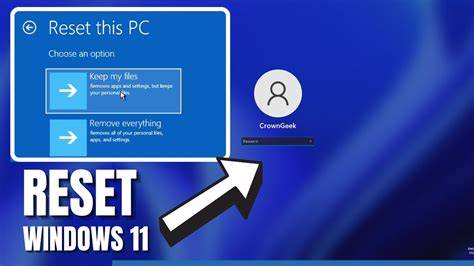
- A prompt will appear asking how you want to reset your PC. Choose Keep my files.
- You will see a list of apps that will be removed. Review them, then click Next.
- Finally, click Reset to start the process. Your PC will restart, and Windows will begin reinstalling. This may take some time.
Ensure all important files are backed up before proceeding, even though this method keeps your files.
What to expect after the reset
After the reset process is complete, your PC will boot up as if it’s a fresh installation of Windows 11. You may notice the following changes:
- Default settings will be restored, meaning your preferences will need to be reconfigured.
- Any apps that were installed will be removed, and you’ll need to reinstall necessary software.
- Personal files will remain intact in your user folder. However, some applications may lose their settings or data and will need to be set up again.
Common issues after resetting and how to resolve them
After resetting, you might encounter some common issues:
- Driver issues: Some hardware might not work correctly. If you notice problems, check for driver updates in Device Manager.
- Application reinstallation: If certain applications are missing, you’ll need to reinstall them. Make sure you have access to installation files or the Microsoft Store.
- Performance still slow: If your system remains sluggish, consider further diagnostics, such as checking for malware or adjusting performance settings.
Troubleshooting these issues can help restore your system's functionality.
Conclusion
Once you've reset Windows 11, take time to reinstall your applications and adjust your settings as needed. Keeping your files ensures you don’t lose important data, but maintaining regular backups is a good practice to prevent potential loss in the future.
Frequently Asked Questions
Will resetting my PC remove my personal files?
No, if you choose the 'Keep my files' option, your personal files will remain intact.
What happens to my installed applications after the reset?
All installed applications will be removed, and you'll need to reinstall them after the reset.
Can I cancel the reset process once it has started?
It's not recommended to cancel the reset process once it has begun, as it can lead to system problems.
Is there anything I should do after resetting my PC?
After resetting, reinstall your applications, check for updates, and adjust your settings as needed.