Windows 11 is the latest operating system from Microsoft, featuring a refreshed interface designed for ease of use. If you're new to Windows 11 and feeling overwhelmed by its changes, understanding its key features and how to customize them will help you navigate the system confidently.
What are the main features of the Windows 11 interface?
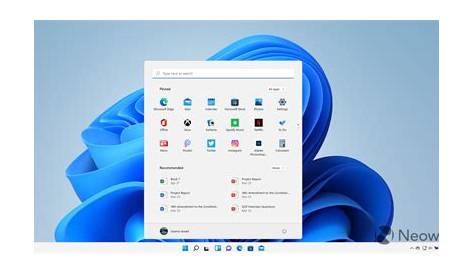
Windows 11 features a centered taskbar and a redesigned Start menu, which marks a significant departure from earlier versions. The new Start menu is simplified, showing pinned apps and a search bar at the top for a cleaner look. Instead of a long list of programs, you have a grid of icons for your favorites and a section for recommended files, making access quicker and more intuitive.
The taskbar now includes features like Snap Layouts, allowing you to organize open windows into predefined layouts, which enhances multitasking. You can also find a Widgets panel offering news, weather, and calendar updates, all accessible from the taskbar.
One of the significant changes is the new virtual desktop functionality, which lets you create multiple desktops for different tasks. This can help keep your work organized and separate from personal use.
How can I customize my taskbar and start menu?
Customizing your taskbar and Start menu is straightforward. Here are the steps to personalize your experience:
- Right-click on an empty space on the taskbar.
- Select
Taskbar settings. - In the settings window, toggle features on or off, such as the search bar, task view, or widgets.
- To pin apps to the taskbar, find the app in the Start menu, right-click it, and choose
Pin to taskbar. - For the Start menu, click the
Startbutton, right-click an app, and selectPin to Startto add it to your Start menu. - You can rearrange pinned apps by clicking and dragging them to your desired position.
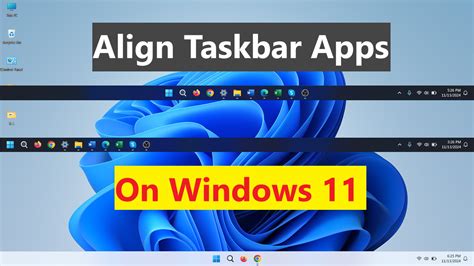
- To change the taskbar alignment, go to
Taskbar settings, then look forTaskbar behaviors, and set theTaskbar alignmentto your preference.
What should I know about the new settings menu?
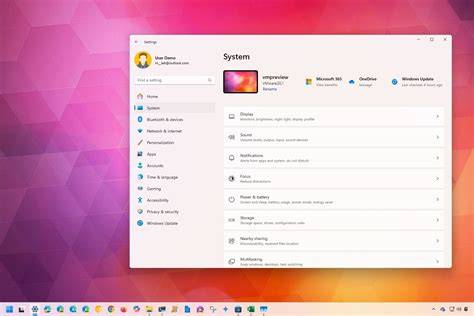
The Settings menu in Windows 11 has been redesigned for easier navigation. The main categories are now displayed in a sidebar, making it simple to find what you need. For example, to adjust your display settings:
- Click on
Systemin the sidebar. - Select
Display, where you can change resolution, orientation, and scaling options.
Another key area is Privacy & security, which consolidates all your privacy settings. You can manage app permissions, location services, and camera access all in one place. This centralization streamlines your experience, especially if you're used to navigating various menus in older versions.
Are there any common issues with Windows 11 navigation?
Many new users encounter navigation challenges in Windows 11. Here are some common issues and tips to address them:
- Finding settings: Some users miss the Control Panel. Remember, many settings have moved to the new Settings app, so use the search bar at the top to quickly locate what you're looking for.
- Taskbar responsiveness: If your taskbar feels unresponsive, try restarting your computer or checking for updates, as these can resolve minor glitches.
- Snap Layouts confusion: If you’re unsure how to use Snap Layouts, hover over the maximize button on any window to see layout options appear. Click on your preferred layout to efficiently organize your windows.
Where can I find additional resources for learning Windows 11?
There are several helpful resources to further your understanding of Windows 11:
- The official Microsoft website provides detailed documentation and guides on features and troubleshooting.
- Online forums like Reddit or Microsoft Community are great for asking specific questions and getting advice from fellow users.
- YouTube has numerous tutorial videos that visually guide you through various tasks and features in Windows 11, which can be especially useful if you prefer visual learning.
Conclusion
Explore the new interface and customize it to fit your workflow. Familiarizing yourself with the features and settings will enhance your experience as you adapt to Windows 11, making it smoother and more enjoyable.
Frequently Asked Questions
How do I restore the classic Start menu?
Windows 11 does not officially support a classic Start menu, but you can use third-party applications like Open-Shell to achieve a similar look.
Can I change the taskbar back to the left side?
Yes, you can change the taskbar alignment. Go to `Taskbar settings`, look for `Taskbar behaviors`, and set the `Taskbar alignment` to `Left`.
What if my computer is not compatible with Windows 11?
If your computer does not meet the system requirements for Windows 11, you can continue using Windows 10, which will receive support until October 2025.