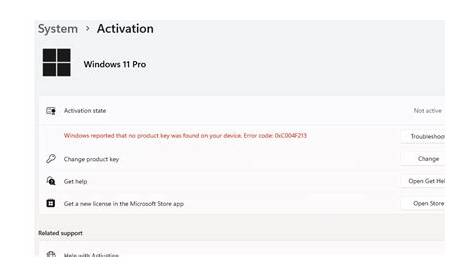
If you're seeing a Windows 11 activation error, it means your operating system can't validate its license. Common causes include hardware changes or issues with your internet connection. Fortunately, there are straightforward steps to resolve these activation errors quickly.
What does the Windows 11 activation error mean?
Windows 11 activation errors indicate that your operating system cannot validate its license. You might see error messages like:
Error 0xC004C003: License is not valid
Error 0xC004F074: The Software Licensing Service reported that the product key is invalidThese messages typically appear when you are trying to activate Windows for the first time or after making significant hardware changes, such as replacing the motherboard.
Why is my Windows 11 not activating?
Several common reasons may cause Windows 11 to fail activation:
- Hardware Changes: If you've recently upgraded your hardware, especially the motherboard, Windows may require reactivation.
- Internet Issues: A stable internet connection is necessary for activation. If your connection is weak or intermittent, it might prevent activation.
- Expired License: If you are using a trial version or a previously activated license that has expired, you will encounter activation issues.
- Incorrect Product Key: Entering an invalid or incorrect product key will also lead to errors during the activation process.
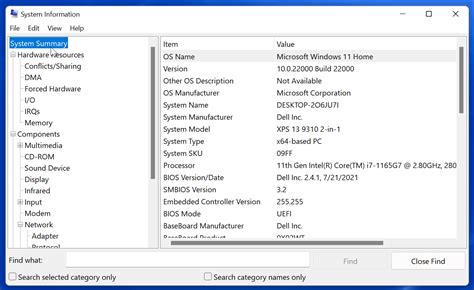
How to resolve Windows 11 activation errors
Follow these steps to troubleshoot and fix Windows 11 activation issues:
- Check your internet connection. Ensure you are connected to a stable network.
- Run the Activation Troubleshooter: - Go to Settings > Update & Security > Activation. - Select Troubleshoot and follow the prompts.
- Re-enter your product key: - Go to Settings > Update & Security > Activation. - Click on Change product key and enter your valid product key.
- Use Command Prompt to reset the licensing status: - Open Command Prompt as an Administrator. - Run the following command: ``
cmd title="Command Prompt" slmgr.vbs /ato`` - This command attempts to activate Windows again. - If all else fails, consider contacting Microsoft Support for further assistance.
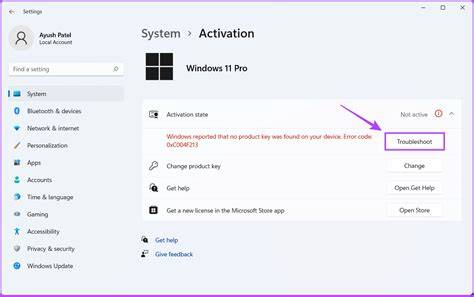
How to verify successful activation of Windows 11
To verify that Windows 11 has been activated successfully:
- Go to Settings > Update & Security > Activation.
- Look for a message that says Windows is activated. This confirms that your activation was successful.
Tips to prevent future activation issues
To avoid running into activation issues in the future, consider the following tips:
- Keep your product key safe and ensure it's valid before making hardware changes.
- Use a Microsoft account to link your activation. This can simplify reactivation if you change hardware.
- Regularly check your internet connection to ensure it’s stable during activation attempts.
- Update Windows regularly to ensure you have the latest fixes and improvements.
Conclusion
If you continue facing activation issues despite following these steps, reach out to Microsoft Support for additional help. Keep your product key handy and regularly check your system's activation status to prevent future problems.