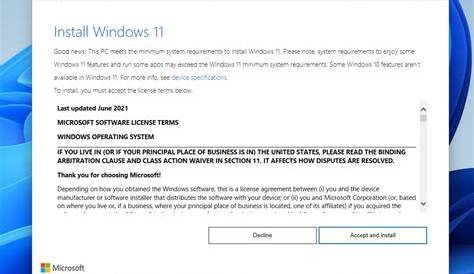
If you're encountering errors while trying to install Windows 11, it's often due to issues like hardware incompatibility, insufficient disk space, or network connection problems. Fortunately, there are practical solutions to these common installation challenges. This guide will help you identify the issues and provide steps to resolve them effectively.
What are the most common Windows 11 installation errors?
During installation, you may encounter several error codes that indicate specific issues. Here are a couple of common ones:
Error: 0x8007007EThis code typically means a missing file or driver, which can halt the installation.
Error: 0xC1900101This error often relates to driver issues during the installation process. It usually indicates that a driver is incompatible or not functioning correctly, which can cause the installation to fail.
Why is my hardware not compatible with Windows 11?
Windows 11 has specific system requirements that your device must meet for proper functionality. The minimum requirements include:
- Processor: 1 GHz or faster with at least 2 cores on a compatible 64-bit processor.
- RAM: 4 GB or more.
- Storage: 64 GB or larger storage device.
- System firmware: UEFI, Secure Boot capable.
- TPM: Trusted Platform Module (TPM) version 2.0.
To check if your device meets these requirements, you can run the PC Health Check app provided by Microsoft, which will analyze your system and indicate any compatibility issues.
How can I fix network issues during installation?
Network connectivity problems can interrupt the installation process. To troubleshoot these issues:
- Ensure your device is connected to the internet, either via Wi-Fi or Ethernet.
- If using Wi-Fi, try switching to a wired connection for a more stable experience.
- Restart your router to resolve any temporary network issues.
- Check your network adapter settings: - Open
Settings>Network & Internet>Status. - Click onNetwork troubleshooterto identify and fix problems automatically.
If the troubleshooter doesn’t resolve the issue, consider updating your network adapter drivers after installation.
What should I do if I get a disk space error?
Insufficient disk space can prevent Windows 11 from installing correctly. To resolve this:
- Check how much space is available: - Open
File Explorer, right-click on theC:drive, and selectProperties. - If space is low, free up disk space by: - Uninstalling unused applications via
Settings>Apps>Apps & features. - Deleting temporary files: - OpenSettings>System>Storage>Temporary files. - Select items to delete, then clickRemove. - If needed, use an external hard drive or USB to temporarily store files until installation is complete.
How can I verify that my installation is successful?
After installation, you can check if Windows 11 is functioning properly:
- Restart your computer and see if it boots into Windows 11.
- Once logged in, check the system information: - Right-click on
Startand selectSystem. - Confirm that it shows Windows 11 as the operating system.
If you encounter a black screen or errors during boot, try booting into Safe Mode:
- Restart your PC, and press
F8orShift + F8before the Windows logo appears to access the recovery options.
Conclusion
If you continue to face issues after trying these steps, consider seeking assistance on forums or through Microsoft's support channels. Additionally, ensure your system drivers are updated and double-check for any compatibility issues before attempting the installation again.
Frequently Asked Questions
What should I do if I encounter a blue screen during installation?
A blue screen usually indicates a serious error. Restart your computer, and if the issue persists, check for hardware compatibility or try reinstalling Windows 11.
Can I install Windows 11 on a virtual machine?
Yes, you can install Windows 11 on a virtual machine, but make sure your host system meets the required specifications and has virtualization capabilities enabled.
What if my device doesn’t support TPM 2.0?
If your device lacks TPM 2.0, you may not be able to install Windows 11. Consider upgrading your hardware or continuing to use Windows 10.
How do I create a bootable USB for installation?
Use the Media Creation Tool from Microsoft's website. Download the tool, run it, and select 'Create installation media' to follow the prompts.