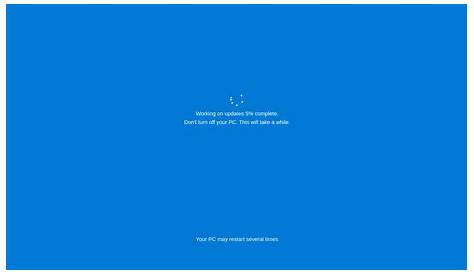
If your Windows 11 update is stuck, it could be due to insufficient disk space, software conflicts, or network issues. You can follow several troubleshooting steps to resolve this and restore your system functionality. This guide outlines what to check and how to proceed when your update is at a standstill.
Why is my Windows 11 update stuck?
Common reasons for a stuck update include insufficient disk space, which can prevent files from being downloaded; software conflicts, often caused by third-party antivirus programs or system tools; and network issues that disrupt the download process. You might also encounter problems if your system has pending restarts or if there's a corrupted update file.
When an update is in progress, it may display a progress percentage or status message. However, if it seems to be stuck for an extended period, such as over an hour, it’s time to investigate further.
Before you start
This guide applies to Windows 11 users experiencing update issues. You will need Administrator privileges to execute some commands. A restart may be required after certain steps, so make sure to save your work. Before proceeding, check your internet connection and ensure there's sufficient disk space available.
How to troubleshoot a stuck update
- Restart your computer. Sometimes, a simple restart can resolve update issues.
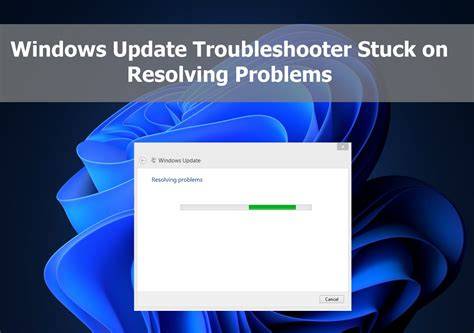
- Use the Windows Update Troubleshooter. Go to Settings > Update & Security > Troubleshoot > Additional troubleshooters > Windows Update and run the troubleshooter. This tool can identify and fix common problems with updates.
- Clear the Software Distribution folder. This folder stores update files that might be causing issues. - Open Command Prompt as Administrator. ``
cmd title="Command Prompt" net stop wuauserv net stop cryptSvc net stop bits net stop msiserver del %windir%\SoftwareDistribution\* /Q /S net start wuauserv net start cryptSvc net start bits net start msiserver`` - This sequence stops the update services, deletes the cached update files, and restarts the services.
How to verify if the update is still working
To check if the update is making progress:
- Look for signs of activity, such as disk usage in Task Manager or indicator lights on your device.
- If the progress bar hasn’t changed for over an hour, it may be stuck. You can check the Windows Update log by running the following command in PowerShell: ``
powershell title="PowerShell (run as Administrator)" Get-WindowsUpdateLog`` - This command generates a log of the update process that can help identify where it might be stuck.
Tips for avoiding future update problems
To minimize the chances of future update issues, consider the following:
- Regularly check for updates and install them promptly to avoid a backlog.
- Ensure you have sufficient disk space before starting an update. Aim for at least 20GB of free space.
- Keep your drivers updated, as outdated drivers can cause conflicts during the update process. Use Device Manager to check for updates.
- Temporarily disable any third-party antivirus software before beginning an update, as these can interfere with the installation.
When to consider professional help
If you've tried the above solutions and your update is still stuck, it may be time to seek professional help. Signs that indicate this include:
- Persistent error messages when trying to update.
- If your PC becomes unresponsive or displays a blue screen.
- Inability to access important files or applications after multiple attempts to fix the update.
In such cases, restoring your system to a previous state using System Restore may be necessary, but proceed with caution. Always back up important data before attempting this option.
Conclusion
After attempting these steps, you should have a clearer path to resolving your stuck update issue. If the problem persists, consider seeking professional assistance or using System Restore to return to a stable state. Keeping your system updated and healthy can help prevent many of these issues in the future.